
You start Duet Night Abyss on your PC, everything looks fine for a second, and then the game crashes with a fatal error. It feels frustrating because the error shows up without much explanation and stops you from playing at all. This issue can interrupt loading, force the game to close to the desktop, or crash it during gameplay. When it keeps happening, it turns a fun session into a problem you don’t know how to fix.
This guide is here to help you. It explains what the Duet Night Abyss fatal error means, why it appears on Windows systems, how you can fix it using clear steps, and how to prevent it from happening again. Everything is written simply so you can follow along without stress.
What Is Duet Night Abyss Fatal Error on PC?
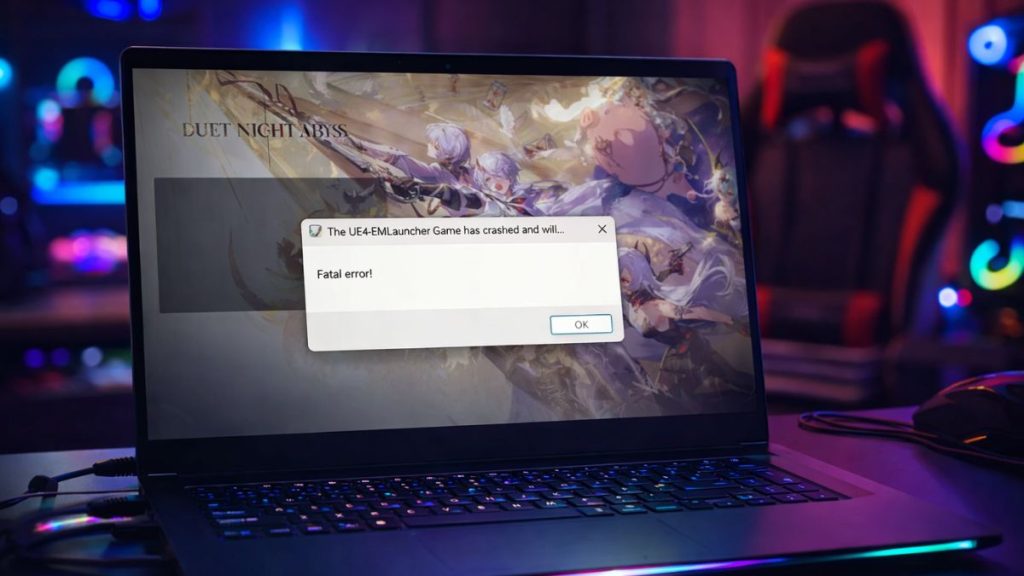
The Duet Night Abyss fatal error is a critical crash message that appears when the game cannot continue running safely on your computer. It usually means the game engine detects a serious conflict with system files, memory usage, or hardware communication. When this happens, the game shuts itself down to avoid causing further problems to Windows or your PC components. This type of error often connects to Unreal Engine behavior, system permissions, or missing runtime files.
Most players notice this error during game launch, while loading into a level, or suddenly during gameplay. Sometimes a small crash window appears with an Unreal Engine message. Other times, the screen goes black and the game closes to the desktop without much detail. This can happen on both Windows 10 and Windows 11 systems.
Common Causes of Duet Night Abyss Fatal Error
This error can happen for several reasons, depending on your PC setup and software condition. Below are the most common causes you should check.
- Outdated or incompatible graphics drivers from NVIDIA or AMD
- Corrupted or missing Duet Night Abyss game files
- Missing Visual C++ Redistributable system components
- Low RAM or insufficient GPU VRAM
- Conflicts with overlays or background applications
- DirectX configuration problems on Windows
- Antivirus or Windows Defender blocking the game
How to Fix Duet Night Abyss Fatal Error on PC?
In most cases, this fatal error comes from software conflicts, missing files, or outdated system components. It may look random at first, but the cause is usually clear once you check the basics. The fixes below focus on stability, system access, and game file health. Follow them in order and test the game after each one.
Fix #1: Update Graphics Drivers
This error often appears when your graphics driver is outdated or unstable. Duet Night Abyss relies on the GPU driver to handle visuals and memory correctly. When the driver fails, the game crashes. Updating the driver helps restore proper communication between the game and your graphics card.
Follow the steps below to easily update your graphics drivers.
- Right-click the Start menu
- Open Device Manager
- Expand Display adapters
- Right-click your NVIDIA or AMD GPU
- Select Update driver
- Choose Search automatically for drivers
- Restart your PC
Launch the game again after the restart.
Fix #2: Verify Duet Night Abyss Game Files
Game files can become corrupted due to interrupted downloads or system errors. When this happens, the game may crash during startup or loading. Verifying files checks the game folder and replaces damaged data.
Here are the following steps which help you to verify game files.
- Open the game launcher
- Go to your game library
- Select Duet Night Abyss
- Open game settings
- Click Verify or Repair files
- Wait for the scan to finish
- Restart the launcher
This often fixes crashes that happen without warning.
Fix #3: Install or Repair Visual C++ Redistributables
Duet Night Abyss depends on Visual C++ Redistributable packages to run properly. If these system files are missing or damaged, the game may crash instantly at launch. Installing the correct versions restores required Windows components.
Download the official Visual C++ Redistributable installers from Microsoft, install both x64 and x86 versions if available, and restart your PC before testing the game again.
Fix #4: Disable Overlays and Background Apps
Overlays and background apps use system memory and can conflict with Unreal Engine processes. When several run together, crashes become more likely.
Try these simple steps to quickly disable overlays.
- Open Discord settings
- Turn off the in-game overlay
- Open GeForce Experience
- Disable the in-game overlay
- Close screen recording tools
- Exit unused background programs
Restart the game after closing these apps.
Fix #5: Run the Game as Administrator
Sometimes Windows blocks the game from accessing important system files. This can trigger crashes during launch or loading. Running the game as administrator gives it full permission.
The following steps will show you how to run the game properly.
- Right-click the game shortcut
- Click Properties
- Open the Compatibility tab
- Check Run this program as administrator
- Click Apply
- Click OK
Launch the game and check stability.
Fix #6: Update Windows and DirectX
Outdated Windows files or DirectX components can cause compatibility issues. Keeping the system updated helps prevent crashes.
Follow these easy instructions to update Windows and DirectX.
- Open Windows Settings
- Go to Windows Update
- Click Check for updates
- Install all available updates
- Restart your PC
- Launch the game again
Fix #7: Check System Memory and Virtual Memory
Low system memory can cause fatal errors during gameplay. If your RAM or virtual memory is too low, the game may crash. Check your RAM usage in Task Manager. Increase virtual memory if needed. Close memory-heavy apps before playing to free resources.
Fix #8: Reinstall Duet Night Abyss (Last Option)
If the fatal error continues after trying all fixes, a clean reinstall may be necessary. This helps remove hidden file corruption, broken settings, or failed updates that other fixes cannot repair. Reinstalling gives the game a fresh start on your system.
Uninstall the game completely, restart your PC, then download and install it again from the official source. After installation, launch the game before adding mods or extra software.
Prevention Tips to Avoid Duet Night Abyss Fatal Error in the Future
Prevention helps reduce crashes and saves time later. Simple habits keep your PC stable and the game running smoothly.
- Keep Windows and GPU drivers updated
- Close unnecessary apps before playing
- Use official drivers from NVIDIA or AMD
- Avoid heavy CPU or GPU overclocking
- Maintain free space on your SSD or HDD
- Add the game folder to antivirus exclusions
- Monitor system temperature during long sessions
Conclusion
Overall, the Duet Night Abyss fatal error on PC is a serious crash linked to drivers, corrupted files, memory limits, or system conflicts. While the error looks intimidating, most causes are simple and fixable when handled step by step.
Try the fixes carefully and follow the prevention tips to keep the game stable. If the error still appears, contact Duet Night Abyss official support and share your system details and crash logs. If this article helped you, comment below and share it with other players who may be dealing with the same issue.