
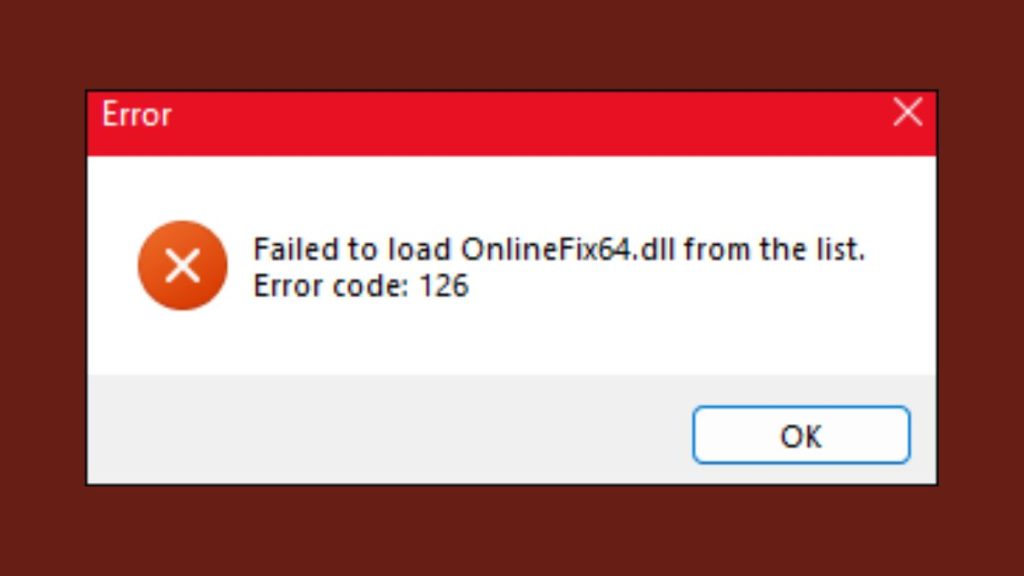
When you try to start a game and Windows shows a message saying Failed to Load OnlineFix64.dll, it feels confusing fast. The game does not open. Nothing else explains what went wrong. Many users see this error after extracting a game or running it for the first time.
This guide explains what the file is, why Windows blocks it, and how to fix the problem step by step. Everything is written simply, with safe checks you can do without breaking your system.
What is OnlineFix64.dll?
OnlineFix64.dll is a dynamic link library file. A DLL file stores code that a game loads while running. This specific file comes from OnlineFix, a tool used in some cracked or modified games to simulate online or multiplayer features without official servers.
Most games that depend on this file look for it when launching. If Windows cannot load the DLL, the game stops immediately. You may see the error as a popup or inside a launcher window. This happens before gameplay even starts.
In many cases, the file itself is not broken. Windows just block it or remove it before the game can use it.
Why Does the “Failed to Load OnlineFix64.dll” Error Appear?
This error does not come from one single cause. Several system checks can trigger it.
Common reasons include:
- Antivirus software deletes OnlineFix64.dll as a false threat
- Windows Defender quarantines the file automatically
- The DLL file is missing from the game folder
- Required Microsoft Visual C++ files are not installed
- The game runs without administrator permission
Most of these issues happen silently. Windows does not warn you before blocking the file.
How to Fix OnlineFix64.dll on Windows
If you are facing the error Failed to Load OnlineFix64.dll, follow these steps one by one. Do not skip any fixes. Stop when the game opens normally, and the error no longer appears.
1. Check Antivirus Quarantine and Restore the File
This error often appears because antivirus software removes OnlineFix64.dll without asking. Many security tools consider this DLL risky and automatically block it.
Open your antivirus program and go to the quarantine or protection history section. Look for OnlineFix64.dll in the blocked files list. If you see it there, restore the file back to its original location.
After restoring the file, you must add the game folder to antivirus exclusions. If you do not do this, the file may be deleted again the next time you open the game.
2. Re-extract the Game Files Properly
If OnlineFix64.dll is missing from the game folder, the game cannot load it at all. This usually happens when the file gets deleted during extraction.
Follow these steps carefully:
- Delete the existing game folder completely
- Turn off real-time antivirus protection for a short time
- Extract the game again using the original archive
- Confirm that OnlineFix64.dll exists in the game directory
- Turn antivirus protection back on
Once extraction is done, try launching the game again. Many users fix the error at this stage.
3. Run the Game as Administrator
Sometimes Windows blocks DLL loading due to permission limits. This is common when the game folder sits in a protected directory.
Right-click the game executable file and select Run as administrator. Wait for the game to start. If the error disappears, this confirms a permission issue.
To make this permanent, open file properties, go to the compatibility tab, and enable run as administrator. Apply the change and close the window.
4. Add the Game Folder to Antivirus Exclusions
If the error keeps returning even after restoring the DLL, exclusions are required.
Add the game folder to your antivirus exclusion list using these steps:
- Open Windows Defender or your antivirus settings
- Find exclusions or allowed files
- Add the full game folder path
- Do not add system folders or drives
This prevents OnlineFix64.dll from being scanned or removed again. It also reduces startup errors caused by false positives.
5. Install Microsoft Visual C++ Redistributable (x64)
Some games fail to load DLL files because required runtime libraries are missing. OnlineFix64.dll depends on Microsoft Visual C++ components to work correctly.
Download and install Microsoft Visual C++ 2015–2022 Redistributable for x64 systems from the official Microsoft website. Restart your computer after installation.
Once the system restarts, open the game again and check if the error is gone.
6. Test by Temporarily Disabling Real-Time Protection
This step is only for testing. Do not leave protection disabled.
Turn off real-time protection in Windows Defender or your antivirus software. Launch the game once. If the game opens without showing the error, security software is blocking OnlineFix64.dll.
After confirming this, turn protection back on and rely on exclusions instead. Never keep protection disabled long-term.
7. Reinstall the Game if Nothing Works
If none of the steps above fix the issue, the game files may be corrupted.
Delete the game completely. Download or extract it again from a clean source. Make sure antivirus exclusions are set before launching the game for the first time.
A clean reinstall often resolves repeated DLL loading failures.
Final Thoughts
The Failed to Load OnlineFix64.dll error usually comes from Windows protection, not from a broken system. In most cases, restoring the file and setting exclusions fixes it quickly.
If this guide helped you, share it with others facing the same issue. You can also comment below with what worked for you or if a step failed. Real experiences help others solve the problem faster.