
GL.iNet routers support VPN protocols such as OpenVPN and WireGuard, which makes them compatible with the NordVPN server network. Once configured, the router routes internet traffic through a VPN tunnel and hides your real IP address. This guide explains what you need before setup, why router-level VPN is useful, and how to add NordVPN to a GL.iNet router step by step.
What You Need Before Setting Up NordVPN on a GL.iNet Router?
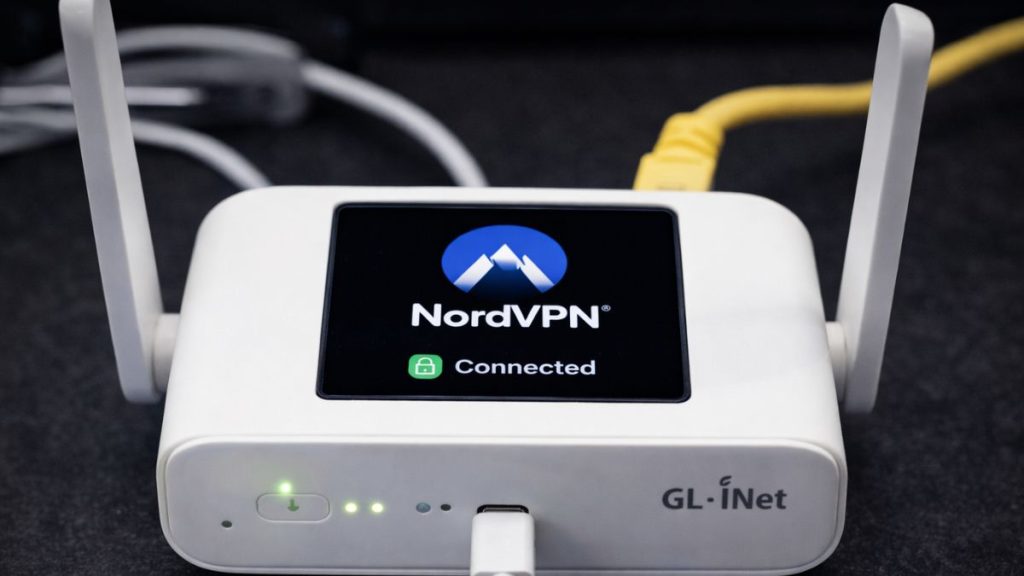
Before configuring NordVPN on a router, you need a few things ready. First, you must have an active NordVPN subscription, because the router connects to NordVPN servers using your account credentials. Second, your GL.iNet router firmware should be updated to the latest version. Updated firmware ensures compatibility with VPN protocols and improves network stability.
You also need access to the GL.iNet router admin panel, which is usually opened through a browser using the router’s IP address. During the setup process you will download OpenVPN configuration files (.ovpn) or WireGuard configuration files from the NordVPN website. These files contain server details, encryption settings, and authentication information needed to create the VPN connection.
Several GL.iNet router models support this configuration. Popular models include GL-MT300N-V2 Mango, GL-AR750S Slate, and GL-AXT1800 Slate AX. These routers include built-in VPN clients designed to simplify OpenVPN or WireGuard setup.
Benefits of Installing NordVPN on a Router
Installing a VPN directly on a router changes how your entire network connects to the internet. Instead of configuring VPN software on each device, the router encrypts traffic for every device connected to the network.
Here are some key benefits:
- Protects all devices on the network including laptops, phones, and tablets
- Supports devices that cannot install VPN apps, such as smart TVs or gaming consoles
- Simplifies network security management because the router handles the VPN connection
- Improves online privacy by hiding your IP address from websites and trackers
- Useful for travel routers, allowing secure connections on hotel or public Wi-Fi networks
With this setup, every device connected to the GL.iNet router automatically uses the NordVPN secure tunnel.
How to Add NordVPN to a GL.iNet Router?
Setting up NordVPN on a GL.iNet router requires several configuration steps. These steps include accessing the router dashboard, downloading configuration files, uploading them to the router, and connecting to a VPN server.
Step 1: Log Into the GL.iNet Router Admin Panel
You must first access the router control panel.
Follow these steps to open the router dashboard:
- Connect your computer or phone to the GL.iNet router Wi-Fi network.
- Open a web browser such as Google Chrome or Mozilla Firefox.
- Enter the router address 192.168.8.1 in the browser address bar.
- Press Enter.
- Log in using the router administrator password.
Once logged in, you will see the GL.iNet router management interface, where you can configure network and VPN settings.
Step 2: Download NordVPN Configuration Files
NordVPN provides configuration files that allow routers and manual clients to connect to its server network.
Follow these steps to download the files:
- Log into your NordVPN account dashboard.
- Navigate to the manual setup or configuration section.
- Choose OpenVPN configuration files.
- Select a server location such as the United States, United Kingdom, or another country.
- Download the
.ovpnconfiguration file.
This file contains server address details, encryption settings, and connection parameters required for the VPN tunnel.
Step 3: Upload the Configuration File to the Router
Next, you will import the configuration file into the router.
Follow these steps to add the VPN profile:
- Open the VPN section in the GL.iNet router dashboard.
- Select the OpenVPN Client option.
- Click the upload configuration button.
- Choose the downloaded
.ovpnfile. - Enter your NordVPN username and password.
- Save the configuration profile.
The router now stores the VPN configuration needed to connect to NordVPN servers.
Step 4: Connect the Router to the NordVPN Server
After uploading the configuration file, you can activate the VPN connection.
Follow these steps:
- Select the newly created VPN profile in the router dashboard.
- Click the Connect button.
- Wait while the router establishes the VPN tunnel.
- The dashboard should display a connected status once the process completes.
At this point, the GL.iNet router routes internet traffic through the NordVPN encrypted network.
Step 5: Verify the VPN Connection
After connecting the router to NordVPN, it is important to confirm that the connection works correctly.
To verify the VPN:
- Open a browser on any device connected to the router.
- Visit an IP address checker website.
- Check the displayed IP address location.
If the setup is correct, the IP address location will match the NordVPN server location instead of your actual geographic location.
Troubleshooting NordVPN Setup on GL.iNet Router
Sometimes the VPN connection may not work on the first attempt. Several small configuration issues can prevent the router from connecting to the NordVPN server.
Here are common troubleshooting tips:
- Confirm that your NordVPN login credentials are correct
- Download a different OpenVPN server configuration file
- Restart the GL.iNet router after configuration
- Update the router firmware to the latest version
- Try switching from OpenVPN to WireGuard protocol if supported
These steps usually resolve connection problems quickly.
Conclusion
Adding NordVPN to a GL.iNet router allows every device connected to the network to benefit from VPN protection. Instead of installing the VPN application on individual devices, the router routes all internet traffic through the NordVPN server network.
Once the configuration file is uploaded and the router connects to a server, your entire network gains improved privacy and encrypted internet traffic. If you use many devices at home or while traveling, router-level VPN protection can simplify security and keep your connection private.
If you have tried this setup before, share your experience in the comments. Your feedback may help others configure NordVPN successfully on their GL.iNet routers.