
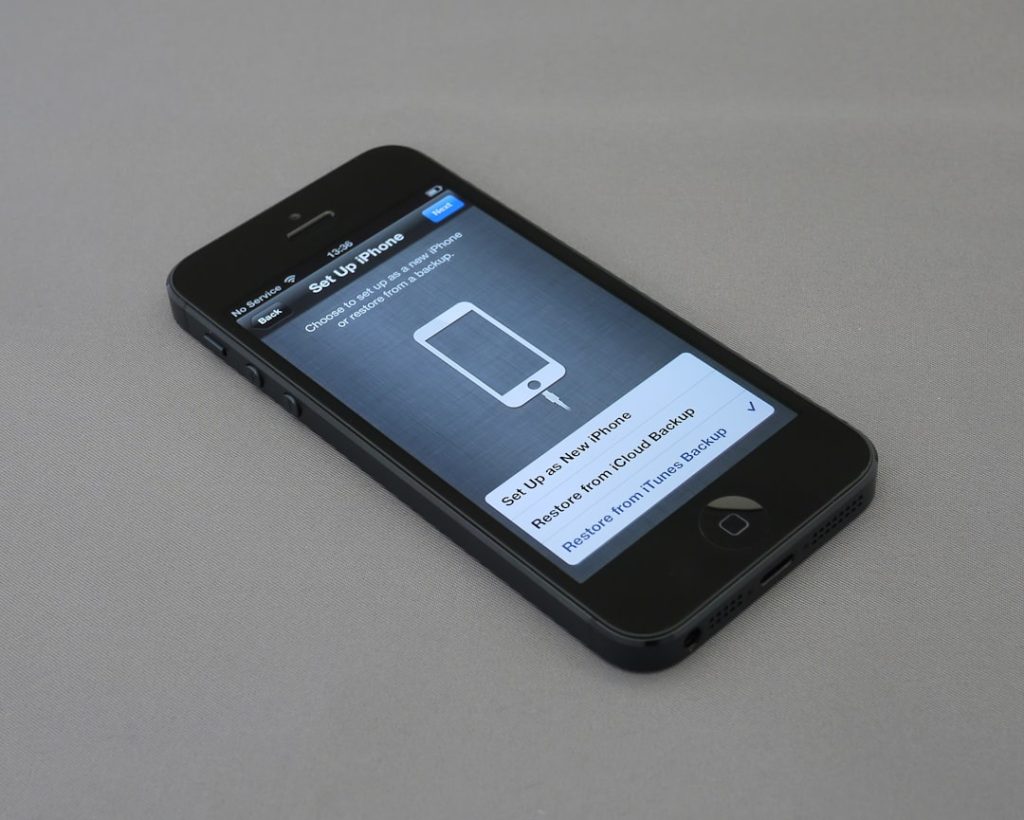
Apple Music is a seamless streaming service when it works correctly, but authorization errors can quickly disrupt the listening experience. From repeated login prompts to messages stating that a device is not authorized, these issues can prevent users from accessing their music libraries. Fortunately, most Apple Music authorization problems can be resolved with a few practical troubleshooting steps. Understanding the root cause and applying the right solution can restore access in minutes rather than hours.
TLDR: Apple Music authorization issues are usually caused by account sign-in problems, device limits, outdated software, or sync issues. Quickly fixing them often involves signing out and back in, checking device authorizations, updating software, or resetting network settings. In more complex cases, deauthorizing devices or verifying subscription status may be necessary. Most users can resolve the problem in under 15 minutes by following structured troubleshooting steps.
Understanding Apple Music Authorization Issues
Authorization issues occur when Apple cannot verify that a user or device has permission to access Apple Music content. This could be due to:
- Incorrect Apple ID credentials
- Expired or inactive subscription
- Too many authorized devices
- Software or system glitches
- Network connectivity problems
Because Apple Music integrates across iPhone, iPad, Mac, Windows PCs, and even smart TVs, the issue may vary depending on the device being used.
Common Error Messages Users See
When authorization fails, users may encounter messages such as:
- “This device is not authorized to play Apple Music.”
- “You must sign in with your Apple ID.”
- “Your account is not authorized for this service.”
- “Too many devices are associated with this Apple ID.”
Recognizing the specific message helps narrow down the appropriate fix.
Step-by-Step Guide to Fix Apple Music Authorization Issues Quickly
1. Sign Out and Sign Back In
One of the fastest solutions is signing out of the Apple ID and signing back in.
- Open Settings on the device.
- Tap the user’s name at the top.
- Select Media & Purchases.
- Choose Sign Out and confirm.
- Sign back in using the correct Apple ID credentials.
This refreshes authentication tokens and resolves many temporary authorization glitches.
Image not found in postmeta2. Check Apple Music Subscription Status
An inactive subscription can cause access denial. Users should:
- Go to Settings → Tap their name → Subscriptions
- Confirm that Apple Music is active
- Renew the subscription if expired
If the subscription recently renewed, logging out and back in may still be necessary to update authorization.
3. Verify Device Authorization Limits
Apple allows a limited number of devices per Apple ID. If that limit is exceeded, new devices cannot be authorized.
To check:
- On a Mac or PC, open the Music or iTunes app.
- Go to Account in the menu bar.
- Select Account Settings.
- Review Apple ID Summary for authorized devices.
If necessary, remove unused devices and reauthorize the current device.
4. Deauthorize and Reauthorize the Computer
On Mac or Windows:
- Open the Music or iTunes app
- Select Account → Authorizations
- Choose Deauthorize This Computer
- Restart the device
- Return and select Authorize This Computer
This process resets authorization certificates stored locally.
5. Update Software
Outdated operating systems can cause authentication conflicts with Apple servers.
- On iPhone or iPad: Settings → General → Software Update
- On Mac: System Settings → General → Software Update
- On Windows: Update via iTunes or system settings

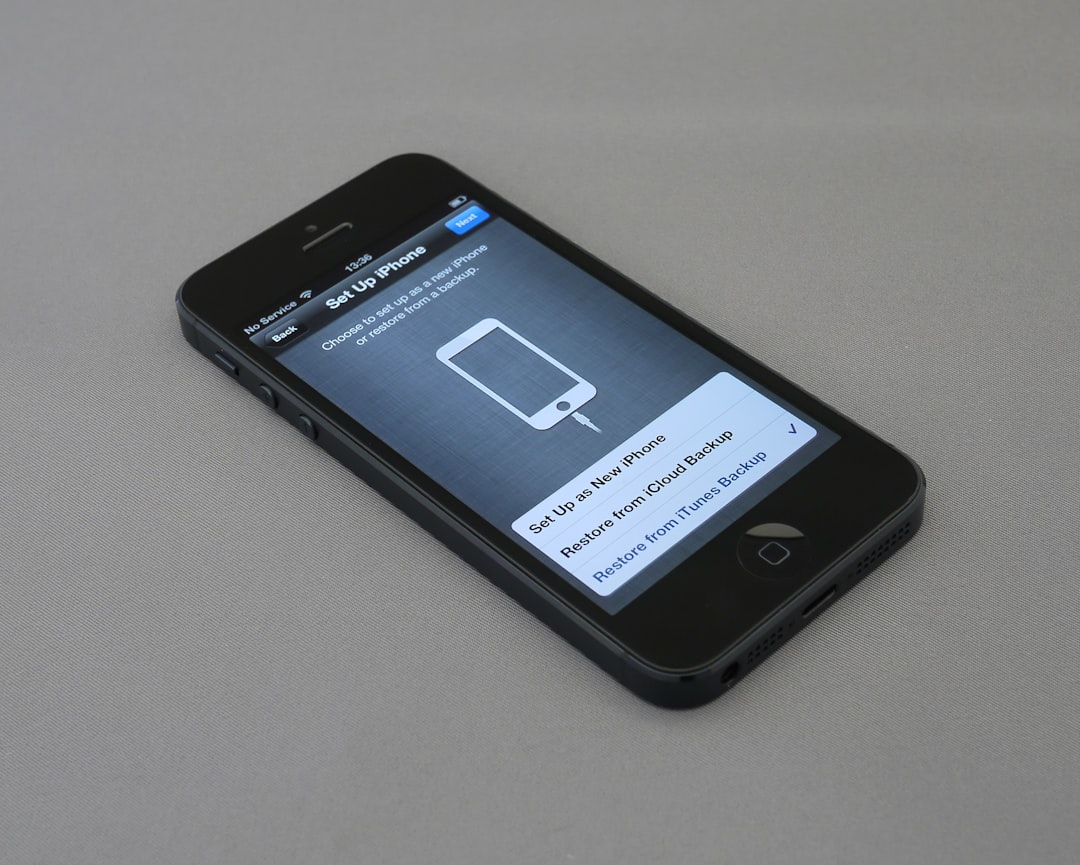
Installing the latest updates often resolves bugs linked to authorization errors.
6. Check Internet Connection
Because Apple Music requires server verification, unstable internet may trigger authorization errors.
Users should:
- Switch between WiFi and mobile data
- Restart the router
- Reset network settings if needed
On iPhone: Settings → General → Transfer or Reset → Reset → Reset Network Settings.
7. Turn Sync Library Off and On
iCloud Music Library sync conflicts can also cause authorization errors.
- Go to Settings → Music
- Toggle Sync Library off
- Restart the device
- Turn Sync Library back on
This forces a refresh between the device and Apple servers.
8. Reset Apple ID Password
If login attempts repeatedly fail despite correct credentials, password corruption could be the issue.
- Visit Apple ID account page
- Select Forgot Password
- Follow verification steps
- Update password on all devices

Quick Troubleshooting Comparison Chart
| Solution | Time Required | Difficulty Level | Best For |
|---|---|---|---|
| Sign Out and Back In | 2–3 Minutes | Easy | Minor login glitches |
| Check Subscription | 2 Minutes | Easy | Expired account issues |
| Deauthorize Devices | 5–10 Minutes | Moderate | Device limit errors |
| Update Software | 10–20 Minutes | Easy | System compatibility problems |
| Reset Network Settings | 5 Minutes | Moderate | Connectivity-related authorization errors |
Advanced Fixes if Problems Persist
If quick fixes do not work, more comprehensive steps may be necessary:
- Contact Apple Support: They can manually review account authorization activity.
- Remove and Reinstall Apple Music App: Reinstalling clears corrupted app data.
- Check Apple System Status: Temporary Apple server outages may block authorization.
In rare cases, account restrictions caused by payment issues or regional account mismatches may require direct Apple support intervention.
Preventing Future Authorization Issues
Most authorization problems can be avoided with proactive management:
- Keep all devices updated
- Manage authorized devices regularly
- Use consistent Apple ID credentials
- Maintain active subscription status
- Avoid sharing Apple ID credentials across too many devices
Maintaining account hygiene reduces the chances of encountering repeated authorization disruptions.
FAQ: Apple Music Authorization Issues
Why does Apple Music say my device is not authorized?
This typically happens when the device exceeds the authorization limit, the Apple ID is incorrect, or the subscription is inactive. Signing out and back in usually resolves it.
How many devices can be authorized with Apple Music?
An Apple ID can generally authorize up to five computers for iTunes or Music access. iPhones and iPads linked to the Apple ID do not count in the same way but may still impact account limits.
Will resetting network settings erase my data?
No personal data is erased, but WiFi passwords and saved networks will be removed. Users must reconnect to WiFi afterward.
Why does Apple Music keep asking me to log in?
Persistent login prompts often indicate corrupted authentication tokens, outdated software, or password mismatch across devices.
Can I fix authorization issues without contacting Apple Support?
Yes. Most issues are solved by signing out and back in, updating software, verifying subscriptions, or managing device authorizations.
Does deleting and reinstalling the Apple Music app help?
Yes, reinstalling the app can remove corrupted cache files and restore normal authorization functionality.
What if none of the solutions work?
If all troubleshooting fails, contacting Apple Support is recommended. They can verify account integrity and remove hidden authorization conflicts on the server side.
Apple Music authorization issues may seem frustrating at first, but they are rarely permanent. By methodically applying the quick fixes outlined above, users can restore full access to their music libraries with minimal downtime. In most cases, the solution takes just a few minutes and requires no technical expertise.