
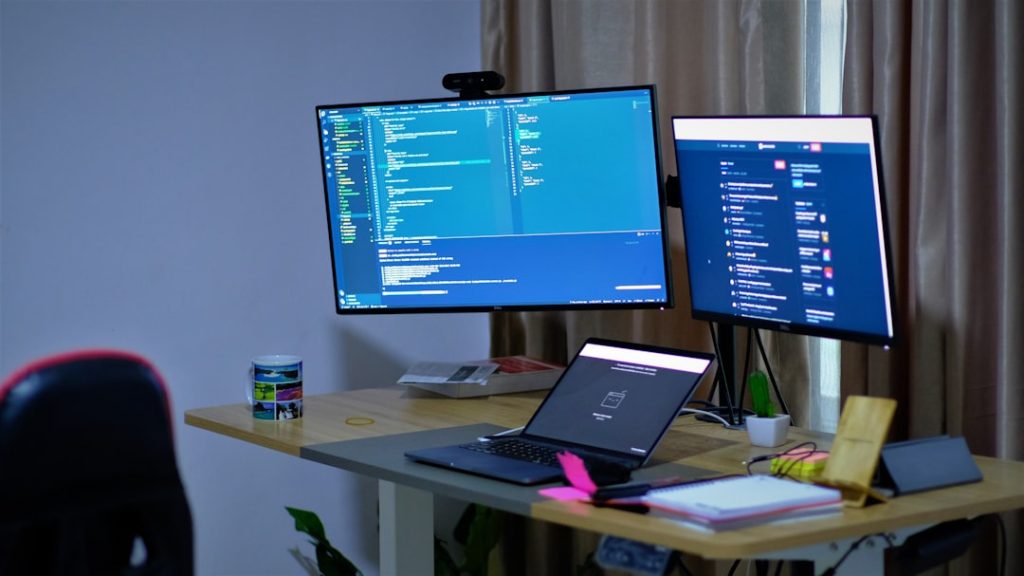
Few things are as disruptive as a PC that crashes without warning or software that freezes in the middle of important work. Whether you rely on your computer for business, study, or creative projects, system instability costs time, money, and trust. The good news is that most crashes and freezes follow identifiable patterns. With a structured, professional approach, you can diagnose and fix the root cause instead of masking the symptoms.
TLDR: PC crashes and software freezes are usually caused by outdated drivers, overheating, corrupt system files, malware, failing hardware, or software conflicts. Start with basic diagnostics such as checking event logs and updating drivers, then move toward system file repair and hardware testing if necessary. Monitor temperatures and remove unnecessary startup programs to stabilize performance. A methodical, step-by-step approach prevents repeat failures and keeps your system running reliably.
1. Update Drivers and Operating System
Outdated drivers are one of the most common causes of system instability. Graphics drivers, chipset drivers, and network drivers in particular can create crashes, especially after major operating system updates. An incompatible driver may cause random blue screens, application freezes, or sudden restarts.
Take the following steps:
- Run your operating system’s update tool and install all critical updates.
- Visit the manufacturer’s website for your graphics card, motherboard, and other major components.
- Update BIOS or firmware only when necessary and from official sources.
A clean driver installation is often more effective than simply installing over an old version. Many GPU manufacturers offer a “clean install” option during setup.

Professional tip: Avoid downloading drivers from third-party websites. Always use official vendor sources to reduce the risk of malware or corrupted packages.
2. Monitor and Control System Temperatures
Overheating forces your computer to throttle performance or shut down entirely. If your PC crashes during gaming, video editing, or other intensive tasks, excessive heat may be the root cause.
Download a reputable hardware monitoring tool to track:
- CPU temperature
- GPU temperature
- Fan speeds
- Voltage levels
Safe operating temperatures vary, but generally:
- CPUs should stay below 85°C under load
- GPUs should remain below 85–90°C depending on manufacturer
If temperatures exceed safe limits:
- Clean dust from fans and heat sinks.
- Reapply thermal paste if your system is several years old.
- Improve case airflow by adding or repositioning fans.
Thermal management is often overlooked, yet it is one of the most effective long-term solutions for system stability.
3. Scan for Malware and Corrupt Files
Malware can hijack system resources, interfere with applications, and trigger crashes. Even if you do not suspect infection, a full system scan is a necessary diagnostic step.
Use trusted security software to:
- Perform a full system scan (not just quick scan)
- Remove or quarantine detected threats
- Check for suspicious background processes
Additionally, repair corrupted system files using built-in utilities. On Windows systems, running system file repair commands can restore damaged operating system components that cause repeated freezes.
If crashes began after installing a specific program, uninstall it temporarily. Poorly coded or incompatible software frequently causes instability.
4. Analyze Event Logs and Crash Reports
Professionals do not guess; they investigate. Operating systems log detailed crash information that can reveal the exact source of the problem.
Check:
- System event viewer logs
- Application crash reports
- Reliability history tools
Look for patterns such as:
- The same driver file mentioned repeatedly
- Memory-related errors
- Disk warnings

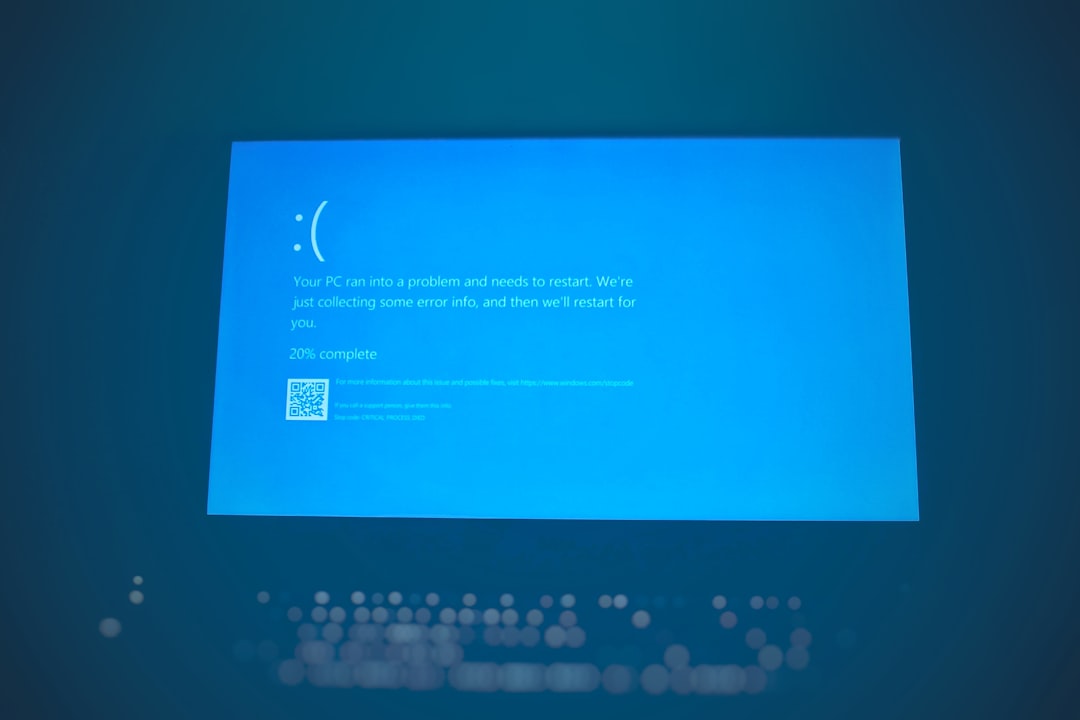
Recurring errors tied to one component significantly narrow down troubleshooting. For example, repeated disk warnings point to storage failure, while memory access violations may indicate faulty RAM.
5. Test Hardware Components
Hardware instability is more common than many users realize. RAM, storage drives, and power supplies degrade over time and can cause unpredictable behavior.
Memory (RAM):
- Run a memory diagnostic tool.
- If multiple RAM sticks are installed, test them individually.
Storage Drives:
- Check drive health using SMART monitoring tools.
- Look for bad sectors or warning indicators.
Power Supply:
- Random restarts under load may indicate insufficient or failing power supply.
- Ensure wattage is adequate for your hardware configuration.
If your PC crashes during high-performance tasks but runs fine at idle, hardware stress is a likely factor.
Comparison of Essential Diagnostic Tools
| Tool Type | Primary Purpose | Best For | Skill Level |
|---|---|---|---|
| Driver Update Utility | Install latest hardware drivers | Fixing compatibility crashes | Beginner |
| Hardware Monitoring Software | Track temperatures and voltages | Diagnosing overheating | Beginner to Intermediate |
| Memory Diagnostic Tool | Test RAM stability | Blue screens, random freezes | Intermediate |
| Disk Health Checker | Analyze storage condition | Slow performance, file corruption | Beginner to Intermediate |
| Event Log Analyzer | Review crash reports | Recurring system errors | Intermediate to Advanced |
This structured toolkit approach allows you to isolate faults rather than rely on trial and error.
6. Manage Startup Programs and Background Processes
Too many startup programs can overload system memory and CPU resources, increasing the likelihood of software freezing. Some applications automatically add themselves to startup without clear user consent.
To optimize startup:
- Open the startup management tool.
- Disable non-essential applications.
- Keep security software enabled.
Pay close attention to programs consuming excessive memory in the task manager. Applications with memory leaks can gradually consume system resources until the system becomes unresponsive.
Regular background process audits prevent long-term system degradation.


7. Perform a Clean Boot or System Reset (Last Resort)
When all else fails, isolate the operating environment. A clean boot starts your computer with minimal drivers and startup programs. If crashes stop during a clean boot, the issue is likely software-related.
From there, re-enable services gradually to identify the culprit.
If instability persists despite all troubleshooting, consider:
- Resetting the operating system while keeping personal files.
- Performing a full reinstall for severe corruption.
Before resetting:
- Back up all important data.
- Document software licenses.
- Export browser bookmarks and critical configurations.
A clean operating system environment eliminates deep-rooted corruption and restores stability in many cases.
Additional Professional Best Practices
Beyond reactive fixes, adopting preventive measures ensures long-term reliability:
- Keep your system clean: Dust buildup significantly reduces cooling efficiency.
- Avoid overclocking unless experienced: Instability often stems from aggressive performance tuning.
- Use high-quality power protection: Voltage fluctuations damage hardware over time.
- Create restore points: Before installing new drivers or major software.
System stability is rarely solved by a single action. Instead, it is the result of disciplined maintenance and informed diagnostics.
Conclusion
Fixing PC crashes and software freezes like a professional requires patience and a structured methodology. Start with the simplest and most common causes—drivers, overheating, and software conflicts—before moving on to deeper hardware diagnostics. Use monitoring and analysis tools to gather evidence instead of guessing.
Most importantly, treat crashes as symptoms rather than isolated events. When you identify the root cause and implement preventive measures, you transform your computer from a source of frustration into a reliable productivity machine. Stability is not accidental—it is engineered through careful attention, consistent updates, and disciplined troubleshooting.