

Twitch is one of the most popular live streaming platforms in the world, especially for gaming and esports content. Among its various features, Twitch often provides viewers with bonus claims, including channel points, drops from partnered games, and Prime Gaming rewards. However, many users have reported issues where their Twitch bonus claims fail unexpectedly. This can lead to frustration, especially when viewers are eagerly waiting for in-game rewards or benefits. In this article, we’ll explore the main reasons why Twitch bonus claims might fail and provide a thorough guide on how to fix them.
TL;DR:
If your Twitch bonus claim isn’t working, it’s usually due to problems like login authorization errors, ad blockers, temporary server issues, or faulty browser settings. Clearing your browser cache, disabling ad blockers, or refreshing your Twitch login are common fixes. Twitch drops and Prime Gaming rewards also require properly linking your account with game developers or Amazon. Follow our comprehensive guide below to ensure you don’t miss out on bonuses you’ve rightfully earned.
Common Reasons Why Twitch Bonus Claims Fail
Twitch bonus claim issues can arise from several sources. Understanding these issues is the first step toward correcting them:
1. Browser Compatibility or Configuration Issues
- Browser Cache and Cookies: Accumulated cache and cookies can interfere with Twitch functionality.
- Outdated Browser Versions: Older browser versions may not support Twitch’s latest scripts and features.
2. Ad Blockers and Browser Extensions
- Some ad blockers or privacy extensions may interfere with Twitch’s GUI elements, including the bonus claim popups.
- These extensions might block essential JavaScript or network requests necessary for verifying bonus claims.
3. Account Syncing and Authorization Problems
- Amazon Prime Account Not Properly Linked: If your Twitch account isn’t correctly connected with Amazon Prime, you might not be eligible for Prime Gaming rewards.
- Game Developer Linkage Failures: Drops tied to specific games require linking Twitch to relevant game publisher accounts, like Riot Games or Blizzard.
4. Twitch Server or CDN Issues
- Sometimes, the problem is on Twitch’s side due to temporary outages or content delivery network (CDN) interruptions.
5. User Behavior or Session-Related Errors
- Idle sessions or watching streams without being logged in can stop the bonus drops from being registered.
How to Fix Twitch Bonus Claim Fails
Now that you know what might be causing bonus claim issues, let’s walk through the most effective solutions to resolve them.
1. Clear Your Browser Cache and Cookies
This is one of the simplest but most effective ways to fix Twitch bonus claim failures, especially if the claim button doesn’t appear or fails to respond.
- Open your browser’s settings menu.
- Navigate to Privacy and Security and select Clear Browsing Data.
- Choose “Cookies and other site data” and “Cached images and files.”
- Click Clear Data, then restart your browser and log back into Twitch.
2. Disable Ad Blockers or Privacy Extensions
Temporarily disable any ad blockers, trackers, or privacy-focused browser add-ons. Some well-known culprits include:
- uBlock Origin
- AdBlock Plus
- Privacy Badger
Once disabled, refresh your Twitch tab and look for the bonus badge next to the chat panel or on the stream window.

3. Use a Different Browser or Try Incognito Mode
If the issue persists, trying Twitch in incognito/private mode will eliminate interference from extensions or old cached files. Alternatively, switch to another browser like Firefox, Chrome, Edge, or Safari to see if that resolves the issue.
4. Reauthorize Third-Party Connections
If you’re trying to claim in-game rewards tied to Twitch Drops, make sure your Twitch account is correctly linked:
- Go to Twitch Connection Settings.
- Ensure your accounts (e.g., Riot Games, Blizzard, Epic Games) are connected and authorized.
- If already connected, try disconnecting and then reconnecting them.
Also, ensure you are logged into the correct Twitch account across all devices and services.
5. Confirm Your Amazon Prime Linkage
Prime Gaming rewards require that your Twitch and Amazon Prime accounts are properly linked. To fix this:
- Visit the Amazon Prime Gaming site.
- Log in using your Amazon account.
- Go to settings and confirm that your Twitch username is correctly linked.
Don’t forget that only one Twitch account can be linked to a Prime membership at a time.
6. Enable Cookies and JavaScript
Twitch’s bonus claim elements rely heavily on cookies and JavaScript. If these are disabled, the bonus icons may not load.
- Open your browser settings.
- Ensure both cookies and JavaScript are allowed—particularly for twitch.tv.
7. Look for Twitch Announcements
If none of the above solutions work, your problem might be due to a Twitch-side issue. Check:
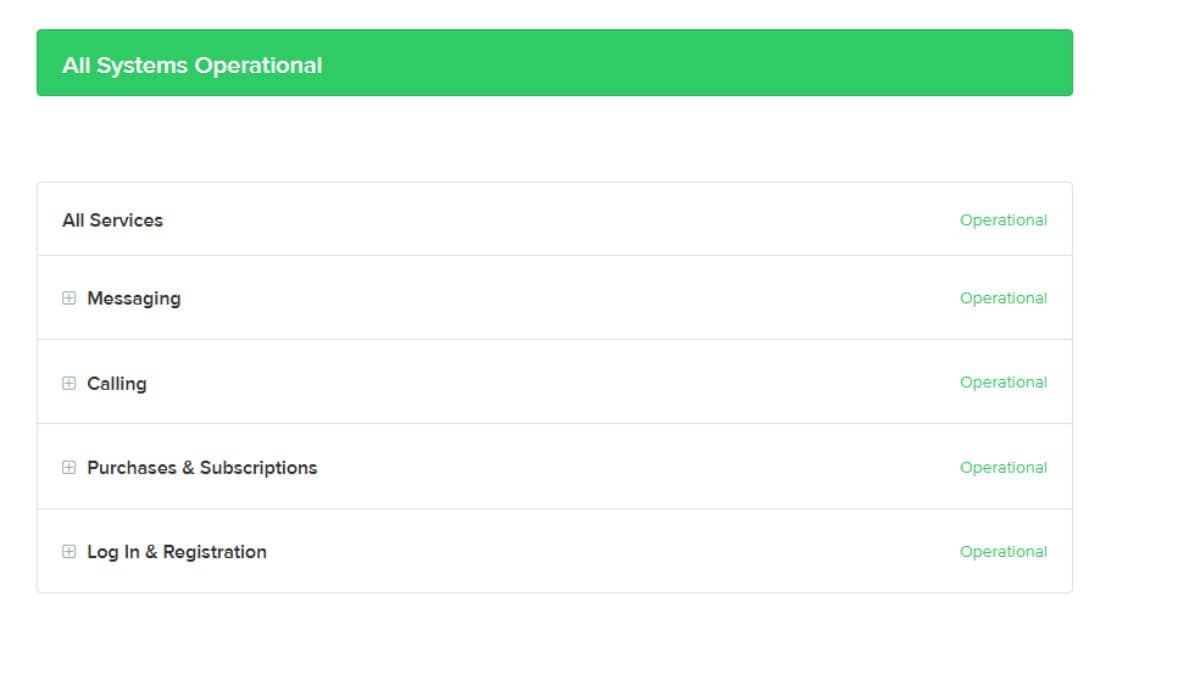
- Twitch’s Status Page
- The official Twitch Support Twitter account
Twitch usually posts updates there when the platform is experiencing widespread outages or problems with specific systems like Drops or Prime claims.

Bonus Tip: Claiming Channel Points Efficiently
For those seeking to maximize their channel points:
- Make sure you’re actively watching channels where channel points are enabled.
- You must be logged in and focused on the stream to accumulate channel points consistently.
- A glowing chest icon will appear in the chat—clicking it allows you to claim bonus points periodically. This process may fail if you’re disconnected, in idle mode, or experiencing browser glitches.
When to Contact Twitch Support
If you’ve tried all troubleshooting steps and still can’t claim your Twitch bonus:
- Go to the Twitch Help Center.
- Select Contact Us and describe the issue in detail, including your browser and device.
- Attach any screenshots if possible—specific visuals (e.g., missing buttons or greyed-out icons) can help speed up the resolution.
Conclusion
Twitch bonus claims are a rewarding feature for loyal viewers, but technical glitches and account configuration errors can get in the way. Most of the time, issues stem from browser settings, interfering ad blockers, or improperly linked accounts. By methodically following the fixes outlined above, you can enjoy uninterrupted access to Twitch bonuses, from in-game loot to channel points. Keeping your accounts synced, browser updated, and ad blockers configured appropriately ensures you’re always ready to claim what’s yours.
Remember, Twitch is constantly evolving—so keeping up with updates and community advice will help you stay ahead of any future glitches or issues.