Software installation failures are among the most frustrating technical issues users encounter. Whether it is a productivity suite, a creative tool, or a critical security update, an installation that refuses to complete can disrupt work and waste valuable time. While error messages may appear complex, the underlying causes are often common and fixable with a structured approach.
TLDR: When software installation keeps failing, the issue often stems from three major causes: system incompatibility, corrupted files or installers, and permission or security conflicts. Verifying system requirements and updates should be the first step. If that checks out, downloading a fresh installer and clearing temporary files often resolves hidden corruption issues. Finally, adjusting administrative permissions and temporarily managing security software can remove access barriers.
Instead of reacting randomly to error prompt after error prompt, users benefit from following a methodical troubleshooting plan. Below are three proven strategies that address the vast majority of installation failures.
1. Verify System Compatibility and Update Requirements
One of the most overlooked causes of installation failure is simple incompatibility. Software evolves quickly, and many applications require updated operating systems, specific processor types, minimum RAM, or certain storage conditions to function properly.
When an installation repeatedly fails, the first step should be reviewing the system requirements listed on the developer’s website. Users should pay close attention to:
- Operating system version (Windows, macOS, or Linux distribution)
- Available storage space
- Processor architecture (32 bit vs 64 bit)
- RAM requirements
- Required frameworks or runtime libraries
Insufficient storage is particularly common. Temporary installation files often require more disk space than the final program itself. Clearing unused applications and files may resolve the issue quickly.
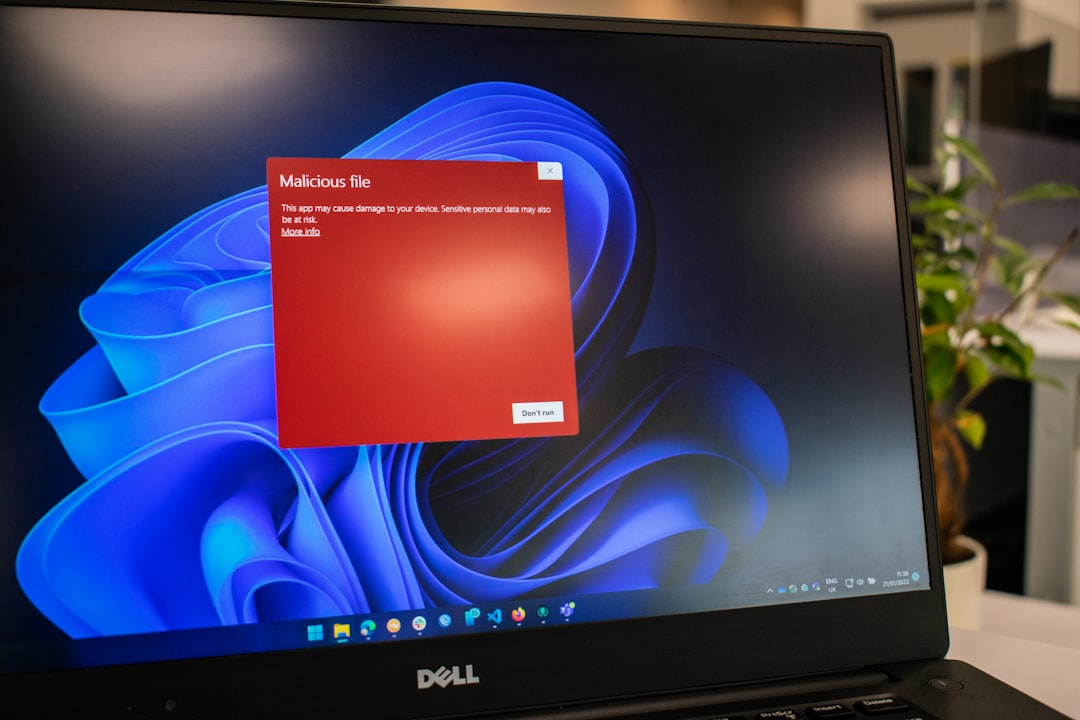
Operating system updates are equally important. Older systems may lack necessary security certificates or runtime environments required for modern applications. Installing pending system updates can resolve compatibility conflicts immediately.
Steps to Check Compatibility
- Visit the official website of the software.
- Compare system specifications with listed requirements.
- Check for pending operating system updates.
- Ensure adequate free disk space (at least double the installer size).
- Restart the system before attempting installation again.
If compatibility checks out but installation continues to fail, the issue is often related to corrupted files.
2. Replace Corrupted Installers and Clear Temporary Files
Downloading large software packages can occasionally result in incomplete or corrupted installers. This may occur due to unstable internet connections, interrupted downloads, or background network throttling.
When corruption is suspected, users should:
- Delete the current installer file completely.
- Clear the browser download cache.
- Restart the device.
- Download a fresh copy directly from the official source.
Avoid third party mirrors or unofficial download platforms, as these may introduce compatibility issues or security vulnerabilities.
Temporary system files can also interfere with installation sequences. Operating systems store leftover configuration fragments that occasionally conflict with new installations. Clearing temporary folders often resolves persistent errors.
How to Clear Temporary Files
- Use built in disk cleanup utilities.
- Empty temporary folders manually.
- Clear software distribution or package cache (advanced users).
Antivirus software can also quarantine installation files incorrectly. While security programs are essential, they sometimes flag legitimate installers as suspicious. Temporarily pausing real time protection during installation may allow the process to complete. However, security should always be re enabled immediately afterward.
If fresh files and cleared temporary storage do not solve the problem, the issue is likely related to permissions or system level restrictions.
3. Check Administrative Permissions and Security Conflicts
Modern operating systems are designed with layered security protections that prevent unauthorized changes. While protective, these features can sometimes block legitimate software installations.
If a program requires elevated privileges, attempting installation without administrator access will cause silent failure or error codes.
Common Permission Related Issues
- Installing under a restricted user account
- Group policy restrictions in workplace environments
- User account control blocking execution
- Corporate firewall interference
To troubleshoot permission conflicts:
- Right click the installer and choose Run as administrator.
- Ensure the user account has full install privileges.
- Temporarily disable strict firewall filtering.
- Consult IT administrators in managed environments.
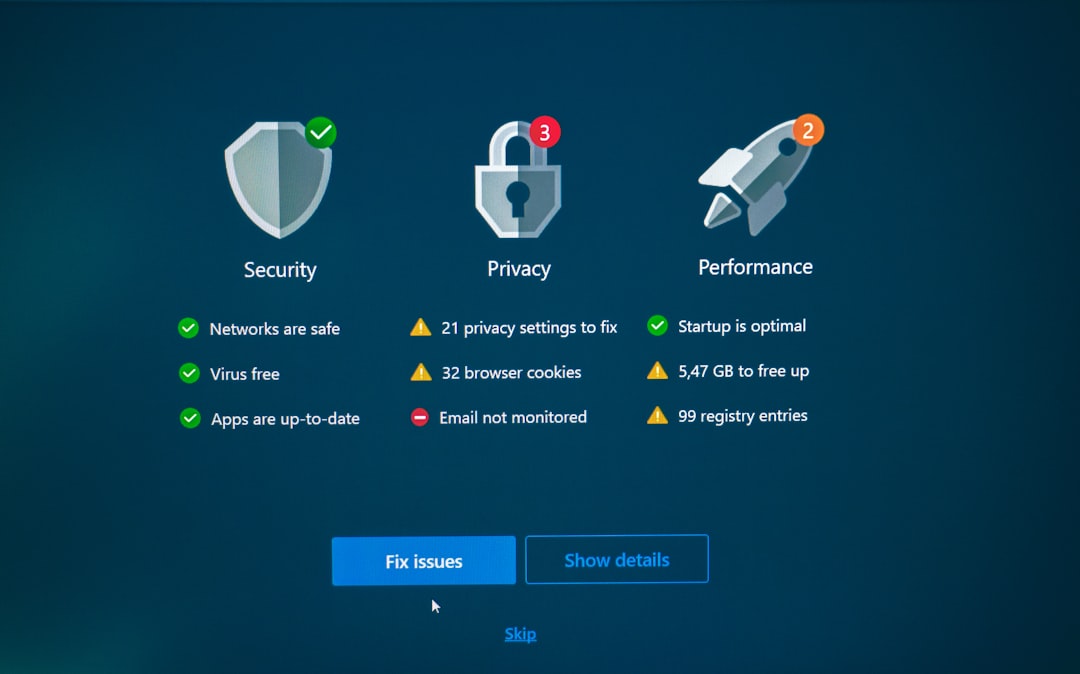
Security software suites may also include advanced behavior monitoring systems that block unknown installation processes. Reviewing quarantine logs can reveal whether files were stopped during execution.
In enterprise settings, installation failures may stem from centrally controlled permissions. Employees may require official installation packages authorized by the organization’s IT department. Attempting to bypass these restrictions is not recommended and may violate security policy.
Comparison of Common Troubleshooting Approaches
| Troubleshooting Method | Best For | Difficulty Level | Success Rate (General) |
|---|---|---|---|
| Checking System Compatibility | Version mismatch, insufficient storage | Easy | High |
| Replacing Installer and Clearing Temporary Files | Corrupted downloads, interrupted installs | Moderate | High |
| Adjusting Permissions and Security Settings | Access denied errors, silent failures | Moderate to Advanced | Moderate to High |
Additional Preventive Measures
While the three strategies above resolve most recurring installation failures, preventative maintenance also plays a crucial role in long term system stability.
- Keep operating systems updated to maintain compatibility with new applications.
- Maintain sufficient free storage space at all times.
- Use reliable internet connections when downloading large files.
- Regularly scan for malware, as infections can corrupt installation processes.
Users who frequently encounter installation problems may benefit from performing a broader system health check. Persistent failures across multiple applications can indicate deeper system corruption, which might require professional evaluation or operating system repair tools.
Conclusion
Repeated software installation failures rarely indicate catastrophic system failure. In most cases, the issue can be traced back to compatibility mismatches, corrupted installation files, or permission conflicts. By addressing these three areas systematically, users significantly increase their chances of resolving the problem without costly technical support.
Rather than reacting with frustration, approaching installation errors with a structured troubleshooting plan empowers users to take control of their systems. With proper maintenance and careful downloads, most installation issues can be prevented altogether.
Frequently Asked Questions
1. Why does my software installation stop at a certain percentage?
This often indicates corrupted installation files, insufficient disk space, or interference from antivirus software. Re downloading the installer and freeing disk space typically resolves the issue.
2. Is it safe to disable antivirus software during installation?
Temporarily disabling antivirus protection can help complete a legitimate installation, but it should only be done briefly and the software should be re enabled immediately afterward.
3. How do I know if my system meets software requirements?
Check your system specifications within your operating system settings and compare them to the requirements listed on the official software website.
4. What does “access denied” mean during installation?
This usually indicates insufficient permissions. Running the installer as an administrator often fixes the issue.
5. Should I use third party download sites if the main website is slow?
No. Third party sites increase the risk of corrupted files or bundled malware. Always download directly from the official developer source.
6. When should I contact professional support?
If installation failures persist across multiple programs despite troubleshooting compatibility, corruption, and permissions, the system may require advanced diagnostics or operating system repair.
Published on March 5, 2026 under .
