If you work on more than one computer, you probably want the same setup everywhere. Maybe you use Visual Studio Code on your laptop and desktop. Maybe you run Claude Code in the terminal for AI tasks powered by Anthropic. So the question makes sense. Can you sync everything across devices? The short answer is yes for some parts, but not everything syncs automatically.
Does VS Code Sync Automatically Across Devices?
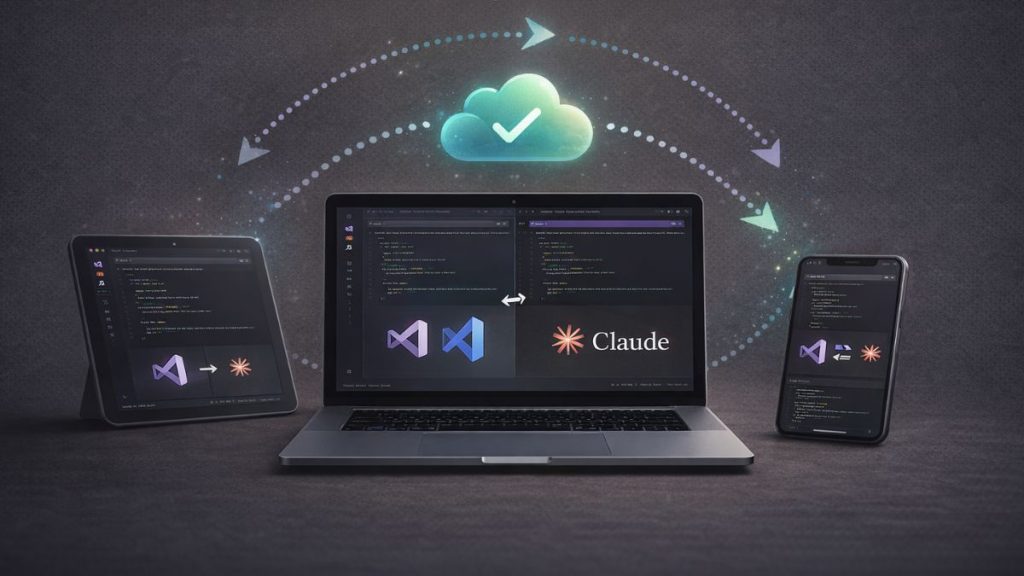
Visual Studio Code includes a built-in feature called Settings Sync. When you sign in with a Microsoft or GitHub account, VS Code can sync your settings across devices. That includes extensions, themes, keybindings, snippets, and your settings.json file. Once enabled, your editor layout and preferences stay consistent. If you install a new extension on one machine, it can appear automatically on the other. This makes switching between macOS, Windows, or Linux much easier.
However, Settings Sync only applies to VS Code itself. It does not sync external tools installed in your terminal, such as the Claude CLI.
Does Claude Code Sync Across Devices?
Claude Code, often used through the Claude CLI, does not sync automatically between devices. Each machine requires its own installation. If you install Claude via npm or Homebrew on one computer, that installation does not transfer to another device. You also need to configure your Anthropic API key separately on each system. Claude AI runs in the cloud, but your CLI setup is local to your machine.
So the cloud handles AI responses. Your local environment handles configuration.
What Can Be Synced Easily?
Some parts of your development workflow sync smoothly.
- VS Code extensions through Settings Sync
- Editor settings and themes
- Keyboard shortcuts
- Snippets and workspace settings
- Project files using Git with GitHub or GitLab
When you push your code to a Git repository, you can clone it on another device. That keeps your project structure identical.
What Does Not Sync Automatically?
Other components require manual setup.
- Global npm installs like Claude CLI
- Homebrew installations
- Environment variables
- Anthropic API keys
- PATH configuration in zsh or bash
These settings live inside your local operating system. They do not transfer through VS Code sync.
How to Sync VS Code and Claude Code Properly?
If you want a smooth multi-device setup, follow these steps carefully.
Step 1: Enable VS Code Settings Sync
Sign in to VS Code using your Microsoft or GitHub account. Turn on Settings Sync from the command palette. This keeps extensions and editor preferences aligned.
Step 2: Use Git for Project Files
Initialize your project with Git. Push it to GitHub or GitLab. On your second device, clone the repository. This ensures identical code across machines.
Step 3: Install Claude CLI on Each Device
On each computer, install Claude Code separately using npm or your chosen package manager. Confirm installation by running the version command.
Step 4: Securely Store Your API Key
Claude AI requires an Anthropic API key. Store it in an environment variable rather than inside your source code. Never commit API keys to Git.
Step 5: Use a .env File (But Do Not Commit It)
Create a .env file to store environment variables locally. Add the file to your .gitignore. This keeps credentials secure while maintaining consistency.
Step 6: Match Node.js Versions
Different Node.js versions can cause CLI behavior differences. Use a version manager to keep the same Node.js version across devices.
Step 7: Consider Docker for Identical Environments
If you want near-identical setups, use Docker. A Docker container can define Node.js version, dependencies, and environment configuration. This reduces setup differences between systems.
Best Practice for Multi-Device Developer Setup
The safest approach separates code from credentials. Store your code in Git. Store API keys in environment variables. Keep secrets out of version control. When setting up a new machine, follow a documented checklist so nothing is missed. This prevents confusion later.
Consistency matters. When your Node.js version, CLI installation method, and PATH configuration match across devices, your workflow feels smooth.
Conclusion
You can sync Visual Studio Code settings easily using built-in sync features. However, Claude Code and the Claude CLI must be installed and configured separately on each device. Git handles project files. Environment variables handle API keys. When you combine these tools correctly, your development environment stays consistent across multiple machines.
If this helped clarify your setup, share it with other developers or leave a comment about how you manage your multi-device workflow.
Published on February 25, 2026 under .
