Seeing the “Error Window 60 Days” message on your Windows computer can be confusing, frustrating, and sometimes even alarming. For many users, it appears suddenly and threatens reduced system functionality, limited access, or persistent pop-ups that interrupt productivity. Whether you’re using Windows 10 or Windows 11, this issue is commonly linked to activation or licensing problems—but there are also a few less obvious causes. In this guide, we’ll break down what the error means, why it happens, and how you can fix it step by step.
TLDR: The “Error Window 60 Days” message usually relates to Windows activation or licensing issues. The most common causes include expired evaluation versions, invalid product keys, and major hardware changes. Thankfully, you can fix it by verifying activation status, entering a valid key, running activation troubleshooters, or using command-line tools. This guide explains each cause and solution in detail.
What Does the “Error Window 60 Days” Message Mean?
In most cases, the 60-day warning appears when your Windows installation is running in a trial, evaluation, or grace period mode. Microsoft provides limited-time activation windows for certain versions of Windows—especially Enterprise or evaluation builds. If activation is not completed within that timeframe, Windows starts issuing warnings.
You may notice symptoms like:
- Frequent activation pop-ups
- Limited personalization options
- A watermark on the desktop
- Automatic restarts
- Restricted updates
Although it sounds serious, the issue is often reversible once you identify the root cause.
3 Common Causes of the “Error Window 60 Days” Message
1. Expired Windows Evaluation Version
This is the most common reason users encounter the 60-day error. Microsoft provides Windows Evaluation versions—primarily for IT professionals and businesses—to test Enterprise features before purchasing a license. These versions typically expire after 60 or 90 days.
If you’re running an evaluation version:
- Windows cannot be permanently activated with a regular Home or Pro key.
- The system will begin issuing periodic expiration warnings.
- It may eventually limit functionality.
How to check if you’re using an evaluation version:
- Press Windows + R.
- Type winver and press Enter.
- Look for text that says Evaluation Copy.
If it says “Evaluation,” you’ll need to install a fully licensed version to fix the issue permanently.
2. Invalid or Unverified Product Key
Another frequent trigger is an invalid, expired, or blocked product key. This often happens if:
- The key was purchased from an unofficial seller.
- The key has been used on too many devices.
- The key version doesn’t match your installed edition (e.g., Pro key on Enterprise edition).
Windows periodically revalidates licenses with Microsoft’s activation servers. If authentication fails, the system reverts into a temporary grace period and may display the 60-day message.
How to verify activation status:
- Open Settings.
- Click System.
- Go to Activation.
- Check the activation status message.
If it says “Windows is not activated,” that’s the source of your issue.
3. Major Hardware Changes
Windows licenses—especially OEM licenses—are tied to your device’s hardware, particularly the motherboard. If you recently:
- Replaced the motherboard
- Upgraded the CPU
- Performed a full hardware rebuild
Windows may interpret it as a “new” computer. As a result, the activation becomes invalid and triggers a grace period warning.
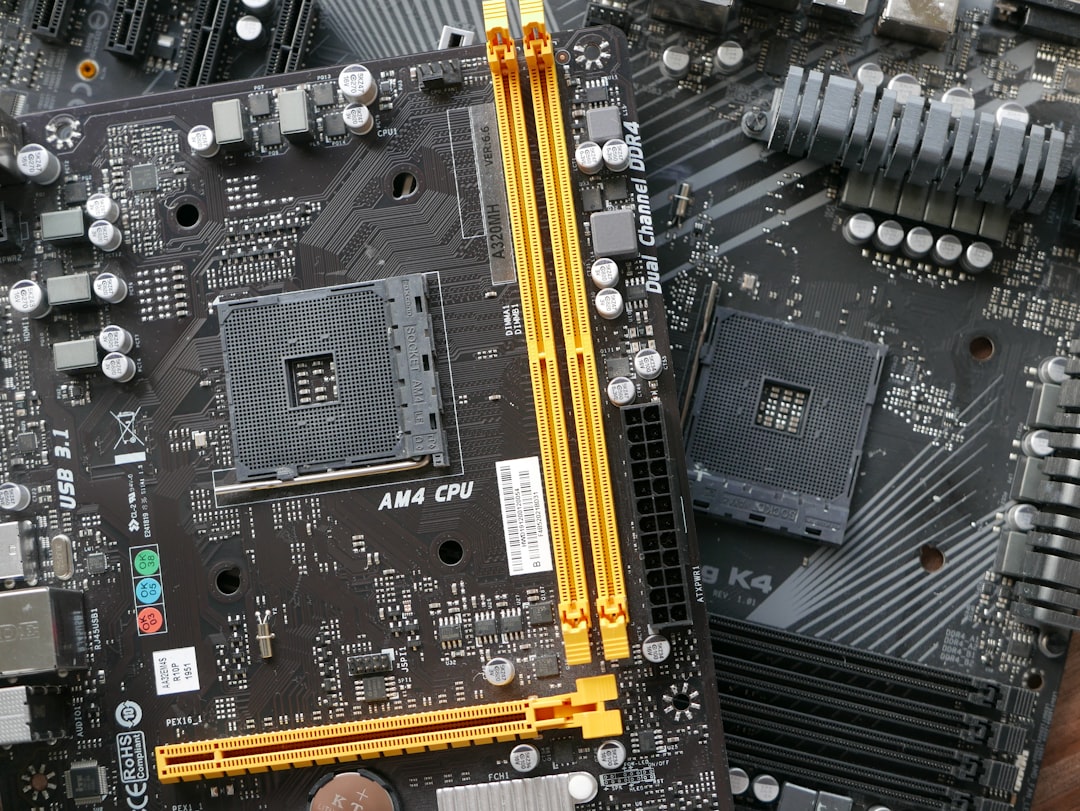
In this case, you may not need to purchase a new key—you simply need to re-link your license.
Complete Fix Guide for Windows Users
Now that we’ve identified the main causes, here’s how to fix the error step by step.
Fix 1: Run the Windows Activation Troubleshooter
This built-in tool is the easiest solution and often resolves simple licensing mismatches.
- Open Settings.
- Go to System → Activation.
- Click Troubleshoot (if available).
The troubleshooter will:
- Scan for activation errors.
- Check your internet connection.
- Attempt automatic reactivation.
If you recently changed hardware, select “I changed hardware on this device recently” when prompted.
Fix 2: Enter a Valid Product Key
If your product key is invalid or missing, enter a genuine key:
- Open Settings → System → Activation.
- Click Change product key.
- Enter your legitimate Windows key.
- Click Next and follow prompts.
Make sure:
- The key matches your Windows edition.
- Your internet connection is active.
If activation succeeds, the 60-day message disappears immediately.
Fix 3: Use Command Prompt to Check Licensing Status
For more detailed insight, you can use built-in licensing commands.
Steps:
- Search for Command Prompt.
- Right-click and choose Run as administrator.
- Type:
slmgr /dlv
This displays detailed licensing information, including:
- License status
- Grace period remaining
- Activation ID
If the grace period remains, you can attempt reactivation using:
slmgr /ato

This forces Windows to attempt online activation.
Fix 4: Convert Evaluation Version to Full Version
If you’re using an Evaluation version, direct activation won’t work. You must install a licensed edition.
Option A: Perform a Clean Installation
- Download official Windows installation media.
- Back up important files.
- Install a genuine Windows Home or Pro edition.
Option B: Use DISM Conversion (Advanced Users)
In some cases, you can convert Enterprise Evaluation to Enterprise Full using this command:
DISM /online /Set-Edition:Enterprise /ProductKey:XXXXX-XXXXX-XXXXX-XXXXX-XXXXX /AcceptEula
This requires a valid Enterprise key.
Fix 5: Re-Link Your Digital License
If your Windows license is tied to your Microsoft account:
- Go to Settings → Accounts.
- Ensure you are signed in with the correct Microsoft account.
- Go to System → Activation.
- Select Troubleshoot.
Choose the device from your account list and select Activate.
Additional Tips to Prevent the Error in the Future
Once resolved, take these steps to avoid seeing the 60-day warning again:
- Always purchase keys from authorized retailers.
- Link your digital license to your Microsoft account.
- Keep Windows updated.
- Before major hardware upgrades, confirm license type.
- Avoid unofficial activation tools or scripts.
Unofficial activation tools may temporarily suppress the message, but they often cause long-term system instability or security risks.
When Should You Contact Microsoft Support?
If you’ve:
- Entered a valid key
- Run the troubleshooter
- Attempted command-line activation
And the issue persists, contact Microsoft Support. Provide:
- Your product key
- Purchase receipt
- Device information
- Error screenshots
Support agents can sometimes reactivate systems manually after verification.
Is the “Error Window 60 Days” Dangerous?
The message itself is not malware and does not indicate a virus. However, if activation remains unresolved:
- Your PC may become harder to personalize.
- Certain updates may fail.
- Persistent notifications can interrupt workflows.
While not immediately catastrophic, it’s best to fix the issue promptly to avoid escalating restrictions.
Final Thoughts
The “Error Window 60 Days” message may seem intimidating, but in reality, it’s a structured reminder from Microsoft that your system needs proper activation. In most cases, the solution is straightforward: verify your Windows edition, enter a valid key, run troubleshooting tools, or reinstall a licensed version.
The key is identifying the exact cause—whether it’s an expired evaluation copy, an invalid product key, or a hardware change. Once you do, the fixes are clear and manageable.
With the steps outlined above, you can confidently restore full Windows functionality and prevent the message from returning in the future.
Published on March 4, 2026 under .
