Seeing a “Purchase to Play” message in Battlefield 6 feels frustrating, especially when you already own the game or have an active subscription. You launch the game with confidence, then access gets blocked without warning.
This guide explains what the error means, why it happens, how to fix it step by step, and how to avoid running into it again.
What Is the Battlefield 6 Purchase to Play Error?
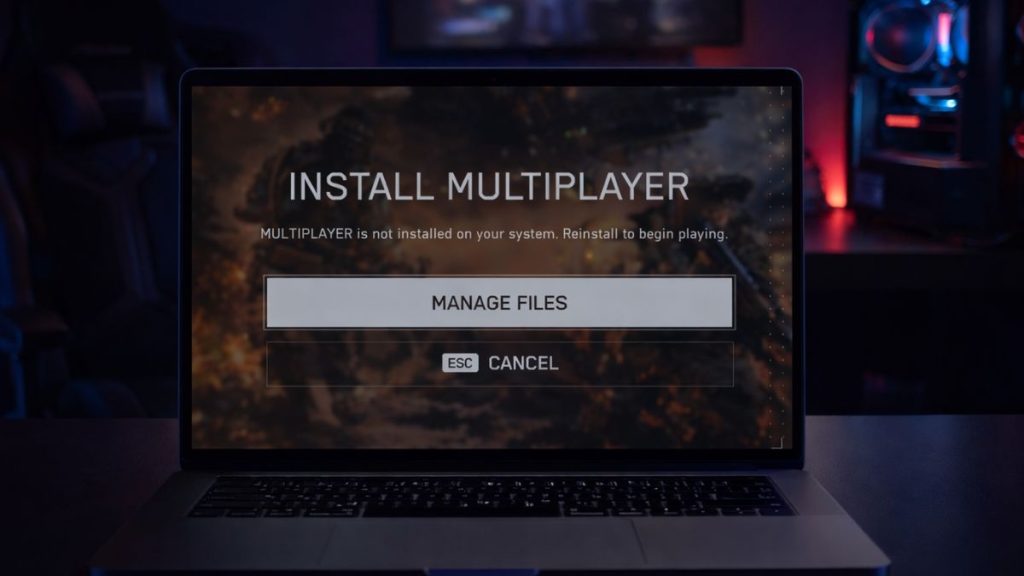
The Battlefield 6 purchase to play error means the platform cannot verify your ownership or access rights at that moment. The system fails to confirm the game license tied to your account.
You usually see this message when launching the game from the EA App, Steam library, or console dashboard. It may also appear after a restart, account sign-in change, or network interruption. Even though the game is installed, the platform temporarily treats it as unowned.
Common Causes of Battlefield 6 Purchase to Play Error
This error can appear for several reasons related to account syncing and license checks. Below are the most common causes players face.
- EA account not properly linked to the platform account
- Game license not refreshed after purchase
- EA App or console running in offline mode
- Expired or undetected EA Play subscription
- Corrupted cache or local license data
- Region mismatch between store and account
- Temporary EA server connectivity issues
How to Fix Battlefield 6 Purchase to Play Error?
In most cases, this error is related to account syncing or license verification rather than the game itself. Try the fixes below in order and stop once the game launches normally.
Fix #1: Confirm Game Ownership on Your Platform
This error often appears when the platform does not correctly recognize your purchase. Confirming ownership ensures the game license exists on your account. Once verified, the platform can reload the correct access rights.
Here are the following steps which help you confirm ownership.
- Open your platform library or store
- Go to your purchase history
- Locate Battlefield 6
- Confirm it shows as owned or installed
- Check subscription access if using EA Play
Fix #2: Restart the EA App or Console and Log In Again
Sometimes the license does not refresh properly. Restarting the app or console reloads account data and restores access.
Close the EA App or fully power off your console, then sign back in using the correct account before launching the game again.
Fix #3: Link or Re-Link Your EA Account
This error often occurs when the EA account is not properly synced with your platform account. Re-linking restores communication between accounts. Once linked again, the license sync usually completes.
You can perform the following steps to re-link your account.
- Open EA account settings in a browser
- Go to Connections
- Unlink your platform account
- Restart the EA App or console
- Link the platform account again
- Launch the game
Fix #4: Clear Cache on EA App or Console
Cached data can block license updates. Clearing the cache removes outdated files and forces the system to reload ownership data. After clearing cache, the purchase error often disappears.
Try these simple steps to clear cache safely.
- Open EA App settings
- Select App Recovery
- Choose Clear Cache
- Restart the EA App
- Reopen the game
Fix #5: Disable Offline Mode and Check Network
Battlefield 6 requires an online license check. Offline mode blocks this process and triggers the error.
Make sure offline mode is disabled, your internet connection is stable, and the system clock is set correctly before launching the game.
Fix #6: Check Subscription Status (EA Play)
If Battlefield 6 is accessed through EA Play, an expired or paused subscription can cause this error. Verifying subscription status restores access if it is still active.
Here’s how you can confirm subscription access in a few seconds.
- Open EA account settings
- Go to Subscriptions
- Check EA Play status
- Confirm the subscription is active
- Restart the EA App
- Try launching the game
Fix #7: Reinstall or Restore the Game License
If none of the above fixes work, reinstalling the game or restoring licenses can resolve deeper issues.
On consoles, use the restore licenses option. On PC, reinstall Battlefield 6 from the EA App or platform store and launch it fresh.
Prevention Tips to Avoid Purchase to Play Errors in the Future
Prevention reduces access issues and keeps license checks smooth.
- Keep the EA App updated
- Avoid switching accounts while logged in
- Stay online during first launch after purchase
- Monitor EA Play subscription expiration
- Use the same region across stores and accounts
- Restart the app after purchases
- Keep system date and time accurate
Conclusion
In short, the Battlefield 6 purchase to play error usually happens due to account sync, license refresh, or connectivity issues. The game is often owned, but the platform fails to recognize it at that moment.
Try each fix step by step and apply the prevention tips to avoid future access problems. If the error continues after all fixes, contacting EA support with your account details is the best next step. If this guide helped you, feel free to share it or leave a comment about which fix worked for you.
Published on January 15, 2026 under .
