You try to copy a file or open a storage drive, and Windows suddenly shows data error cyclic redundancy check. The system stops the operation and refuses to read the file. This situation can worry many users because the error often appears when accessing important data.
This guide explains what the CRC error means, why it happens, and how you can fix the problem safely.
What Is a Cyclic Redundancy Check Error?
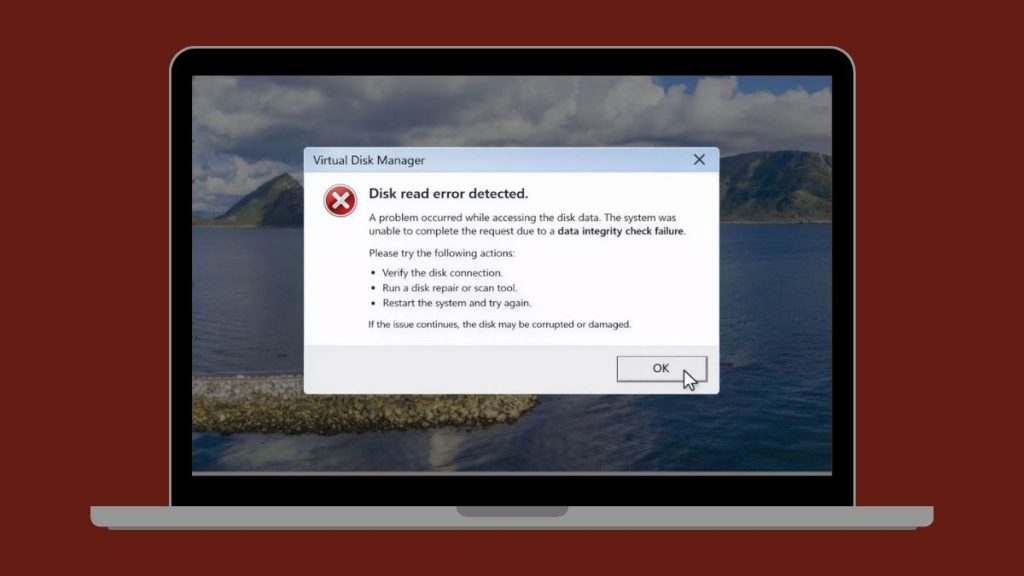
A cyclic redundancy check (CRC) is a data verification method used by computers to detect corruption in stored or transferred data. When Windows reads a file from a storage device such as a hard disk drive, solid state drive, USB flash drive, or external hard drive, the system performs a mathematical check to confirm that the data matches its original structure. If the calculated checksum does not match the expected value, the system assumes the data has become corrupted. Windows then stops the operation to prevent further damage or incorrect data processing.
When this verification fails, Windows displays the message “data error cyclic redundancy check.” The error usually appears in Windows File Explorer during file copying, file extraction, or disk access operations.
Common Causes of Data Error Cyclic Redundancy Check
CRC errors often occur because the system detects corrupted or unreadable data on a storage device. In some situations the problem comes from the file itself, while in other cases the storage hardware is failing.
Below are the most common causes you should know.
- Corrupted files during data transfer
- Bad sectors on the hard drive or storage device
- Damaged external hard drive or USB flash drive
- Faulty USB cable or unstable connection
- Scratched optical discs such as CD or DVD
- Interrupted file downloads or installations
- Failing hard disk drive hardware
- File system corruption in the storage partition
For example, if a hard drive contains bad sectors, Windows may not be able to read the data stored in that area. When the operating system detects the mismatch, it reports the CRC error.
How to Fix Data Error Cyclic Redundancy Check?
Some CRC errors come from temporary system problems, while others result from damaged storage sectors. The solutions below focus on repairing the disk structure and recovering accessible data whenever possible.
To resolve this issue efficiently, try the following fixes.
Fix 1 – Run the CHKDSK Command
The CHKDSK utility scans the storage drive for errors and attempts to repair damaged sectors or file system problems.
Follow the steps below to run CHKDSK.
- Open the Start menu and search for Command Prompt
- Run the command prompt as administrator
- Type the command to check the drive and repair errors
- Press Enter to begin the disk scan
- Wait until Windows completes the repair process
This process may take time depending on the size of the drive.
Fix 2 – Copy Files Using Command Prompt
Sometimes the graphical interface fails to copy corrupted files. The command line tool may succeed in copying readable portions of the data.
Here are the following steps which help you copy files through command prompt.
- Open Command Prompt with administrator privileges
- Navigate to the source folder containing the file
- Use the copy command to transfer the file
- Select a destination folder for the copied file
- Allow the process to finish
This method may recover usable data from partially corrupted files.
Fix 3 – Try a Different USB Port or Cable
External storage devices rely on stable connections. A faulty cable or USB port can interrupt the data reading process.
Follow the steps below to test another connection.
- Disconnect the external drive from the computer
- Inspect the USB cable for damage
- Connect the device to a different USB port
- Restart the file transfer attempt
- Observe whether the error still appears
A stable connection often resolves reading issues.
Fix 4 – Restart the Computer
Temporary system processes can sometimes interfere with disk operations. Restarting Windows refreshes system services and hardware connections.
You can perform the following steps to restart the system.
- Save any open documents
- Open the Windows Start menu
- Select the power icon
- Click Restart
- After reboot, attempt the file operation again
Restarting often resolves minor system conflicts.
Fix 5 – Scan the Disk for Errors
Windows includes tools that check the health of a storage device. Disk scans can identify bad sectors and repair file system errors.
The following steps will show you how to scan the disk properly.
- Open Windows File Explorer
- Right-click the storage drive
- Select Properties
- Navigate to the Tools tab
- Run the error-checking scan
After the scan finishes, try accessing the files again.
Fix 6 – Use Data Recovery Software
If the file remains inaccessible, specialized data recovery software may retrieve the remaining data.
Follow these easy instructions to recover files.
- Install reliable data recovery software
- Launch the program
- Select the affected drive
- Start a deep scan
- Recover the files found by the program
Recovery tools can access readable data even when the file system has errors.
Fix 7 – Check External Drive Connections
Loose or unstable connections can cause CRC errors during data transfer.
Perform the following steps carefully to inspect the connection.
- Disconnect the external storage device
- Check the power supply if the drive uses external power
- Inspect the USB cable and connector
- Reconnect the device securely
- Try accessing the files again
Reliable connections improve data transfer stability.
Fix 8 – Replace the Storage Device
If CRC errors appear repeatedly, the storage device may be failing. Mechanical drives especially develop bad sectors as they age.
These are the exact steps you need to follow to protect your data.
- Back up accessible files immediately
- Stop using the failing drive for important tasks
- Replace the damaged storage device
- Transfer data to a new drive
- Monitor the new drive using disk health tools
Replacing failing hardware prevents future data loss.
Prevention Tips to Avoid CRC Errors
Preventing CRC errors often involves proper storage care and data management. Following a few simple habits can protect both the files and the storage device.
Here are some helpful prevention tips you can follow.
- Back up important data regularly
- Safely eject external drives before disconnecting them
- Maintain a stable power supply during file transfers
- Avoid interrupting downloads or installations
- Monitor disk health using diagnostic tools
- Replace aging storage devices before failure
- Use reliable cables and storage accessories
These practices help reduce the risk of data corruption.
Conclusion
The data error cyclic redundancy check message usually indicates that Windows detected corrupted or unreadable data. Common causes include bad disk sectors, damaged files, unstable storage connections, or failing hardware. By scanning the disk, repairing file system errors, and checking hardware connections, many users can recover their files successfully.
If the problem continues even after troubleshooting, the storage device may be approaching failure. At that point, backing up your data and replacing the drive becomes the safest option. If this guide helped you solve the issue, feel free to share your experience in the comments and help others dealing with the same CRC error.
Published on March 16, 2026 under .
