Seeing error code 0xC0000005 on Windows can be annoying. Apps crash, games won’t open, or installers stop without warning. When this happens, work breaks and time gets wasted. This guide explains what the error means, where it shows up, why it happens, how to fix it step by step, and how to keep it from coming back.
What Is Error Code 0xC0000005 on Windows?
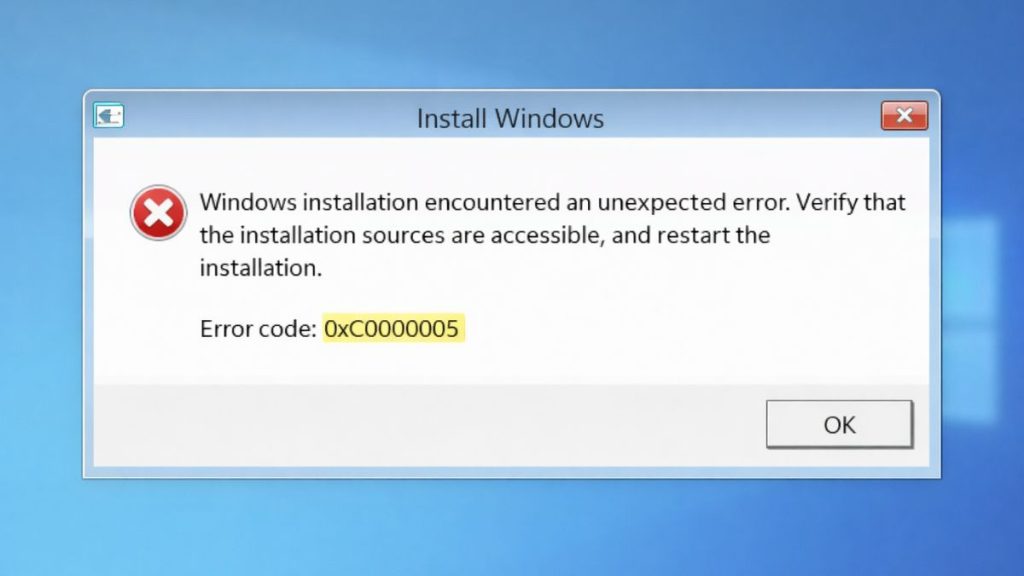
Error code 0xC0000005 is a Windows access violation error. It appears when a program tries to use memory it should not touch. Windows blocks that action to protect the system, so the app shuts down.
You usually see this error during app launch, game startup, or software installation. It may show as a crash message, a frozen screen, or a log entry in Event Viewer. Sometimes it shows with no message at all, just a sudden close.
Common Causes of Error Code 0xC0000005
This error can happen for several reasons, depending on your system and software setup.
- Corrupted Windows system files
- Faulty or incompatible device drivers
- Bad RAM or memory problems
- Antivirus or security software blocking apps
- Malware or unsafe programs
- Incorrect Windows Registry entries
- Outdated Windows version
How to Fix Error Code 0xC0000005 on Windows?
In most cases, this error links to memory access, drivers, or system protection settings. Try the fixes below in order. Stop when the error is gone.
Fix #1: Run System File Checker (SFC)
Corrupted system files can trigger access violations. SFC scans Windows files and repairs them.
Follow the steps below to easily run System File Checker.
- Press Windows + S and type cmd
- Right-click Command Prompt and choose Run as administrator
- Type
sfc /scannowand press Enter - Wait for the scan to finish
- Restart your computer
After the restart, many crash issues clear up.
Fix #2: Run Windows Memory Diagnostic
Memory errors often cause this problem. Windows has a built-in RAM test.
Here’s how you can check your memory in just a few seconds.
- Press Windows + R
- Type
mdsched.exeand press Enter - Choose Restart now and check for problems
- Let Windows test your RAM
- Log back in and review the results
If memory errors appear, faulty RAM may need replacement.
Fix #3: Update or Roll Back Device Drivers
Drivers control how hardware talks to Windows. Bad drivers can cause access violations.
Try these simple steps to manage drivers.
- Right-click the Start menu
- Open Device Manager
- Expand Display, Audio, or System devices
- Update the driver or roll back if recently updated
- Restart your PC
This fix helps often after Windows updates.
Fix #4: Disable Antivirus or Security Software Temporarily
Some antivirus tools block safe programs by mistake. This can cause crashes.
Turn off your antivirus for a short test. Run the affected app. If it works, add the app to the antivirus allow list, then turn protection back on.
Fix #5: Enable or Adjust DEP Settings
Data Execution Prevention protects memory, but sometimes it blocks trusted apps.
Below are the steps that will guide you to adjust DEP safely.
- Press Windows + S and search Advanced system settings
- Open Performance Settings
- Go to the Data Execution Prevention tab
- Choose Turn on DEP for all programs except those I select
- Add the affected app and save
Restart Windows and test again.
Fix #6: Scan for Malware or Harmful Software
Malware can damage memory access and system files. You can perform the following steps to scan your system.
- Open Windows Security
- Select Virus & threat protection
- Click Scan options
- Choose Full scan
- Start the scan and wait
Remove anything detected and restart.
Fix #7: Repair or Reinstall the Affected Application
If the error happens in one app only, that app may be broken.
Uninstall the app, restart your PC, then install the latest version from the official source. This often fixes crashes caused by missing or damaged files.
Fix #8: Check and Repair Disk Errors
Hard drive or SSD errors can block data access. Follow these easy instructions to check your disk.
- Open File Explorer
- Right-click your system drive
- Select Properties
- Open the Tools tab
- Click Check and follow prompts
Disk repairs help when files fail to load.
Fix #9: Update Windows to the Latest Version
Old Windows builds contain bugs that cause crashes. Go to Settings, open Windows Update, and install all available updates. Restart after updates finish.
Prevention Tips to Avoid Error Code 0xC0000005 in the Future
Prevention saves time and stress later. These habits help keep Windows stable.
- Keep Windows updated
- Update drivers regularly
- Use trusted software only
- Avoid registry cleaner tools
- Scan for malware often
- Monitor RAM health
- Restart after major updates
Conclusion
To summarize, error code 0xC0000005 means Windows blocked a program from accessing memory. It usually links to system files, drivers, RAM, or security settings.
Try the fixes one by one and apply the prevention tips. If the error still shows up, contact Microsoft support or the app’s official support team. If this guide helped, share it and leave a comment to help others.
Published on January 13, 2026 under .
