You open GameStop.com, and instead of the homepage, you see “Access Denied” or “Request Blocked.” The page refuses to load. That feels confusing, especially when your internet works fine on other websites. In most cases, this happens because GameStop’s security system blocks your IP address or browser session. This guide explains what the block means, why it happens, and how to restore access safely.
What Does “GameStop Blocking Access” Mean?
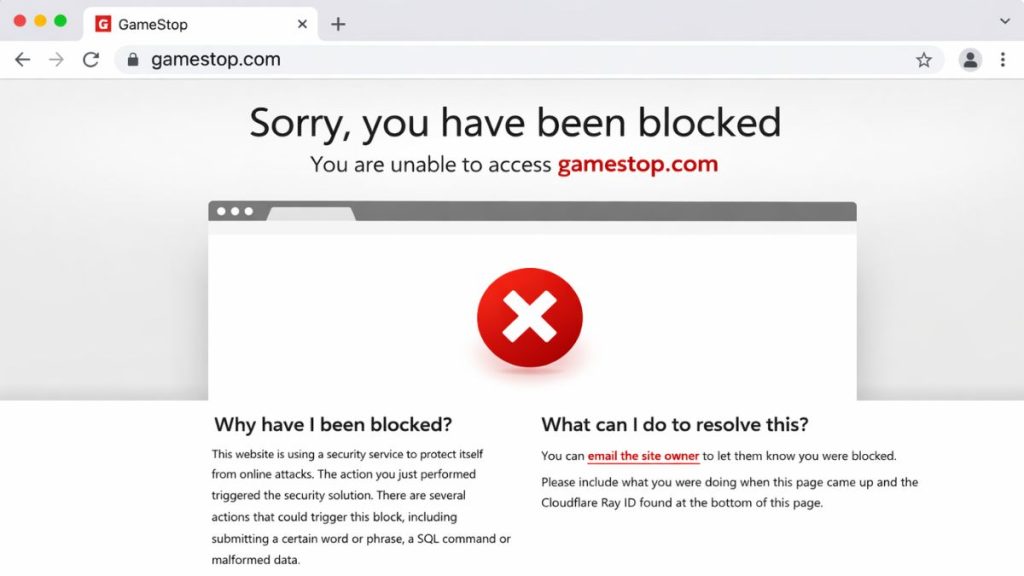
When GameStop blocks access, it usually means the website security system flagged your request as unusual. Many large eCommerce platforms use a web application firewall and content delivery network to protect against bots, automated traffic, and suspicious behavior. Services like Cloudflare filter incoming requests based on IP address, traffic patterns, and browser integrity checks. If the firewall detects rapid page refreshes, VPN routing, proxy servers, or unusual request headers, it may temporarily block access.
The system responds with a 403 Forbidden or Access Denied message to prevent potential abuse. This does not always mean your account is banned. Often, it is an automated protection rule triggered by network behavior.
You may see this error in Google Chrome, Microsoft Edge, Mozilla Firefox, or Safari. It often appears suddenly and may disappear after some time.
Common Causes of GameStop Access Block
This issue usually relates to network identity or browser session conflicts.
- Active VPN or proxy masking your IP address
- Suspicious IP flagged by web application firewall
- Too many rapid page refreshes
- Corrupted browser cookies or session data
- Firewall or router security filtering requests
- DNS misconfiguration affecting routing
- ISP traffic rerouting through flagged servers
- Automated scripts or browser extensions triggering bot detection
Each of these can cause GameStop’s security system to block your request.
How to Fix GameStop Blocking Access?
Start with simple network and browser fixes. Most blocks are temporary.
Fix 1: Disable VPN or Proxy
VPN services change your IP address. GameStop may treat this as suspicious.
Disconnect from your VPN. Close your browser. Reopen GameStop.com. If the page loads normally, the VPN caused the block.
Fix 2: Restart Your Router
Restarting your router can assign a new IP address.
Follow these steps to refresh your connection.
- Turn off your router and modem.
- Wait 60 seconds.
- Turn them back on.
- Reconnect to Wi-Fi.
- Try accessing GameStop again.
This often resolves IP-based restrictions.
Fix 3: Clear Browser Cache and Cookies
Corrupted cookies can cause session validation errors.
Follow these steps to clear browser data.
- Open your browser settings.
- Go to Privacy and Security.
- Select Clear Browsing Data.
- Choose Cookies and Cached Files.
- Click Clear Data.
Restart the browser and try again.
Fix 4: Use Incognito Mode
Incognito mode disables stored cookies and most extensions.
Open a new Incognito window in Chrome or Private window in Firefox. Visit GameStop.com. If it loads, your regular session data caused the issue.
Fix 5: Disable Browser Extensions
Some extensions trigger bot protection systems.
Open your extensions panel. Disable ad blockers or automation tools. Restart the browser. Then test GameStop again.
Fix 6: Change DNS to Automatic
Incorrect DNS settings can route traffic through flagged servers. Perform the following steps carefully.
- Open Network Settings.
- Select your active connection.
- Set DNS to Automatic.
- Save changes.
- Restart your router if needed.
This refreshes domain resolution.
Fix 7: Try a Different Network
Testing another network helps identify ISP-related blocks.
Use mobile hotspot or another Wi-Fi connection. Visit GameStop.com. If it works there, your primary network IP may be restricted.
Fix 8: Contact GameStop Support
If the block continues, contact GameStop customer support. Provide your IP address and a screenshot of the error page. They can confirm whether your IP was flagged by mistake.
Prevention Tips to Avoid Errors in the Future
Preventing access blocks requires stable browsing behavior. Avoid excessive page refreshes on GameStop.com. Do not use unstable VPN services when shopping. Keep your browser updated to ensure compatibility with modern security checks. Clear cookies occasionally to avoid corrupted sessions. Avoid automation scripts or scraping tools.
Maintain secure router settings but do not over-restrict outgoing connections. These habits reduce the chance of triggering web application firewall rules.
Also follow these small tips:
- Avoid rapid page refresh
- Limit VPN use on retail sites
- Keep browser updated
- Clear cookies regularly
- Avoid automation tools
- Restart router occasionally
Conclusion
In short, GameStop blocking access usually happens because the website security system flagged your IP address or browser session. It often connects to VPN use, rapid refresh behavior, or corrupted cookies. Most users fix it by restarting their router, clearing cache, or disabling VPN.
If the issue continues, contacting GameStop support is the safest option. Try the steps calmly and one at a time. If this guide helped you regain access, share it and leave a comment about what worked for you.
Published on March 3, 2026 under .
