During Windows Autopilot deployment, a device may stop during setup and show Intune Autopilot Error 80180014. The device fails to complete enrollment into Microsoft Intune, and the setup process cannot continue.
This usually happens during the Windows Out-of-Box Experience (OOBE) when the system tries to join Microsoft Entra ID (Azure Active Directory) and register the device with Microsoft Endpoint Manager. This guide explains what the error means, why it happens, and several ways administrators can fix it.
What Does “Intune Autopilot Error 80180014” Mean?
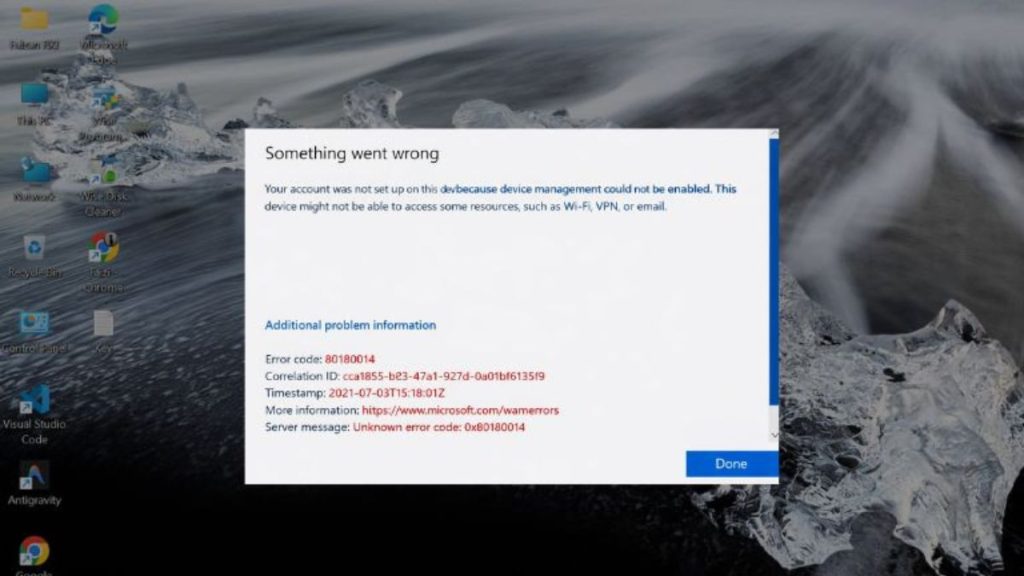
When a Windows device starts the Autopilot enrollment process, it connects to several Microsoft services. The device communicates with Microsoft Intune, the Autopilot deployment service, and Microsoft Entra ID to register the hardware and apply management policies. The system checks device identity, confirms the assigned Autopilot deployment profile, and verifies the user’s Intune license. If any of these steps fail, the device cannot complete MDM enrollment, and the system returns error code 80180014.
This error usually indicates a device registration conflict or a problem with the enrollment configuration inside the Intune tenant.
Administrators usually see this message during Windows setup, right after the user signs in with their organizational account. The error appears on the Autopilot enrollment screen, preventing the device from completing configuration and joining the corporate management environment.
Common Causes of Intune Autopilot Error 80180014
This problem often occurs when there is a mismatch between device records, user permissions, or enrollment configuration in Microsoft Intune.
Common causes include:
- device already enrolled in Microsoft Intune
- duplicate device record in Microsoft Entra ID (Azure AD)
- incorrect Autopilot deployment profile configuration
- user account missing a valid Intune license
- restrictive device enrollment policies
- device ownership conflict or reassigned device
- outdated Autopilot device record in the tenant
How to Fix Intune Autopilot Error 80180014?
Resolving the error usually requires checking device records and enrollment settings in the Microsoft Endpoint Manager admin center. Administrators should confirm that the device and user configuration match the Autopilot deployment policy.
Fix 1 – Delete the Device Record from Microsoft Entra ID
Sometimes the device already exists in Azure Active Directory with a previous registration. This can prevent a new enrollment.
Follow the steps below to remove the device.
- Open the Microsoft Entra admin center.
- Go to Devices.
- Locate the device in the device list.
- Select the device record.
- Delete the device entry.
Removing the record allows the device to register again during Autopilot setup.
Fix 2 – Remove the Device from Microsoft Intune
An existing device entry in Intune may block new enrollment attempts.
You can perform the following steps to remove the device.
- Open Microsoft Endpoint Manager admin center.
- Navigate to Devices.
- Locate the enrolled device.
- Select Delete or Remove.
- Wait for the deletion to sync with the tenant.
After removing the device, restart the enrollment process.
Fix 3 – Reset the Windows Device
A Windows reset clears existing configuration and restarts the Out-of-Box Experience.
Follow these steps to reset the device.
- Open Settings on the Windows device.
- Navigate to System.
- Select Recovery.
- Choose Reset this PC.
- Restart the device and begin Autopilot setup again.
This removes previous device registration data.
Fix 4 – Verify the Intune License Assignment
Each user enrolling a device must have a valid Microsoft Intune license within the Microsoft 365 tenant.
Follow these steps to verify the license.
- Open the Microsoft 365 admin center.
- Navigate to Users.
- Select the user account.
- Open Licenses and Apps.
- Confirm that Intune or Enterprise Mobility + Security is assigned.
Without the proper license, enrollment will fail.
Fix 5 – Review Intune Enrollment Restrictions
Enrollment policies may limit how devices join the organization.
Follow these steps to review restrictions.
- Open Microsoft Endpoint Manager admin center.
- Go to Devices.
- Select Enrollment restrictions.
- Check device limit policies.
- Confirm the user is allowed to enroll devices.
If the limit is reached, the enrollment will fail.
Fix 6 – Sync the Windows Autopilot Profile
Autopilot devices rely on deployment profiles stored in the tenant.
Follow these steps to synchronize the profile.
- Open Microsoft Endpoint Manager admin center.
- Navigate to Devices.
- Select Windows Autopilot devices.
- Choose the affected device.
- Click Sync.
The device will retrieve the latest configuration from the tenant.
Fix 7 – Verify Device Assignment to the Correct User
Autopilot devices can be assigned to specific users for deployment.
Follow these steps to verify assignment.
- Open Windows Autopilot device list.
- Select the device entry.
- Check the assigned user field.
- Confirm that the correct account is assigned.
Incorrect user assignment may interrupt the enrollment process.
Fix 8 – Restart the Autopilot Enrollment Process
Sometimes restarting the setup process allows the device to reconnect with Microsoft services.
Follow these steps to restart the enrollment.
- Restart the device.
- Begin the Windows Out-of-Box Experience again.
- Sign in with the corporate account.
- Allow the system to connect to Intune Autopilot services.
The device should attempt enrollment again.
Prevention Tips to Avoid Intune Autopilot Errors
Proper device lifecycle management reduces enrollment failures during Autopilot deployment.
Helpful tips include:
- maintain accurate device records in Microsoft Entra ID
- remove inactive devices from Intune inventory
- assign valid Intune licenses to users before enrollment
- configure Autopilot deployment profiles correctly
- review device enrollment policies regularly
- monitor the Autopilot device list in Endpoint Manager
- test deployment configurations before large rollouts
These practices help maintain a stable enterprise device provisioning environment.
Conclusion
Intune Autopilot Error 80180014 usually appears when a Windows device cannot complete the Autopilot enrollment process because of device registration conflicts or incorrect configuration in Microsoft Intune. Issues such as duplicate device records, missing licenses, or restrictive enrollment policies commonly cause the error.
Most administrators resolve the issue by removing old device entries from Microsoft Entra ID, verifying Intune licenses, syncing Autopilot profiles, and restarting the enrollment process. If the problem continues after these steps, reviewing the configuration in Microsoft Endpoint Manager or contacting Microsoft support may help identify deeper tenant configuration issues.
If this guide helped you resolve the Autopilot enrollment problem, consider sharing it with other administrators. You can also leave a comment describing which solution worked in your environment.
Published on March 11, 2026 under .
