The iPhone flashlight is part of the rear LED flash inside the camera module. When it stops working, users often see the flashlight button grayed out in Control Center or the Camera app shows “Flash Disabled”. The problem can come from software glitches in iOS, overheating, low battery, blocked flash lens, or hardware damage. This guide explains the causes and gives clear step-by-step fixes to help you restore the flashlight.
Causes of the iPhone Flashlight Not Working
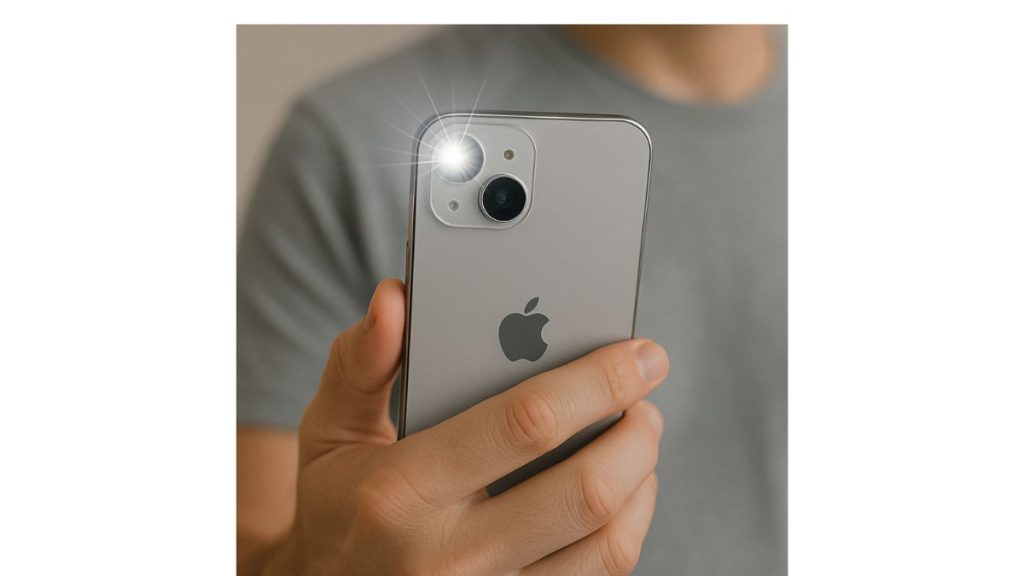
Here are common reasons the flashlight stops responding or stays disabled:
- The Camera app is open and using the flash
- Control Center glitch
- Low Power Mode
- iPhone overheating
- Very low battery
- iOS bugs
- Flashlight icon grayed out
- Thick case blocking the LED flash
- Dirty or foggy flash lens
- Third-party camera apps controlling the flash
- Water exposure
- LED flash or logic board hardware damage
How to Fix iPhone Flashlight Not Working
If the flashlight won’t turn on, follow each fix below in turn.
1. Close the Camera App Completely
The camera and flashlight share the same LED. If the Camera app is open, even in the background, it may block the flashlight. This happens in Photo mode, Video mode, Portrait mode or when a third-party camera app is running.
Swipe up from the bottom (or double-click Home on older models), find the Camera app, and swipe it up to close it fully. Also close other camera apps like Instagram, Snapchat or TikTok if they have flash access.
Once everything is closed, try turning the flashlight on again from Control Center.
2. Restart the iPhone
A restart resets the internal flash controls inside iOS. Sometimes the LED driver or flash process gets stuck after long use, switching apps or using the camera for extended periods. Restarting clears temporary glitches and reloads the system that powers the flashlight.
Hold the side button, slide to power off, wait about ten seconds, then turn your iPhone back on. After the restart, open Control Center and try the flashlight again. A fresh reboot often brings the flash back instantly.
3. Turn Off Low Power Mode
Low Power Mode reduces some features to save battery. In some cases, it affects LED flash functions and limits system performance, which makes the flashlight fail or stay off.
Open Settings, then Battery, and turn off Low Power Mode. You can also disable it from Control Center if the icon is added. After turning it off, test the flashlight. If it works now, the battery-saving mode was blocking it.
4. Check Flashlight Restrictions in Control Center
Sometimes the flashlight toggle becomes grayed out due to restrictions, system bugs or Control Center configuration issues. When the toggle is disabled, tapping it does nothing.
To fix this, open Settings, go to Control Center, and make sure Flashlight is added to the included controls. Remove it, add it back, and try again. This refreshes the feature and often fixes glitches.
5. Cool Down the iPhone if It Is Overheating
If the iPhone heats up during gaming, video recording or charging, iOS will disable the LED flash to protect the hardware. The Camera app may show “Flash Disabled,” and the flashlight will not turn on.
Let the phone cool down naturally. Remove the case, stop charging, place the phone in a cool area and avoid using apps that add heat. After the phone cools, the flashlight usually starts working again.
6. Charge the iPhone if the Battery Is Too Low
When the battery is critically low, the flashlight will not work because the LED flash needs more power. If your battery is under 10 percent, the flash might fail, stay dim, or not turn on at all.
Plug your iPhone into a charger and let it charge for a few minutes. Once it reaches a higher battery level, test the flashlight again.
7. Reset All Settings
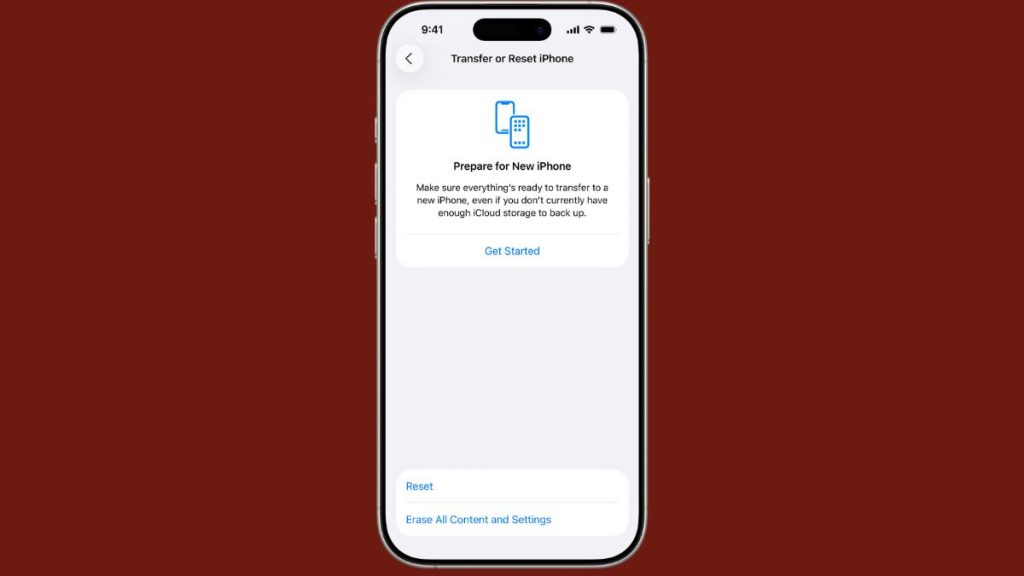
If a deeper system setting is blocking the flashlight, resetting all settings can fix it. This reset restores defaults for display, camera, flash, wireless setting,s and other system options without deleting personal data.
Here is how to do it:
- Open Settings
- Tap General
- Tap Transfer or Reset iPhone
- Tap Reset
- Choose Reset All Settings
After the reset, open Control Center and test the flashlight again. Many users see the flash return at this stage.
8. Clean the Flash Lens and Remove Case Obstructions
Dust, dirt, fog or thick protective cases can block the LED flash. When the flash is covered, the light becomes weak or fails to turn on.
You can fix this by:
- Removing the phone case
- Cleaning the flash lens with a soft microfiber cloth
- Wiping away fingerprints and dust
- Checking for moisture or fog inside the lens
- Inspecting the case cutout to make sure it doesn’t block the LED
A clear lens helps the flashlight work at full brightness.
9. Update iOS
Flashlight issues sometimes start after a buggy update. Keeping iOS up to date ensures you have fixes for camera and LED problems.
Go to Settings, open General, then Software Update. Install the latest version. Updates repair system processes and improve camera and flashlight stability.
10. Check for Hardware Damage
If none of the fixes work, the LED flash itself may be damaged. Drops, water exposure, or internal board issues (like a damaged flash driver or logic board component) can disable the flashlight completely. Signs include:
- Flashlight never turns on
- Flash stays dim or flickers
- Camera flash doesn’t work in any mode
- Phone had recent water contact or a hard fall
In this case, you may need Apple Support or an Apple Store technician to diagnose the hardware.
Prevention Tips to Avoid Flashlight Problems in the Future
You can avoid most flashlight problems with simple habits:
- Keep the camera lens clean
- Avoid overheating your iPhone
- Use official charging cables
- Do not use flashlight for long periods during video recording
- Update iOS often
- Avoid dropping the device
- Keep your phone dry and protected
- Use a case with a proper flash cutout
Conclusion
Most iPhone flashlight issues come from software conflicts, overheating, low battery or minor glitches. By closing the Camera app, restarting the device, turning off Low Power Mode, updating iOS and checking hardware, you can fix the flashlight in minutes. If the LED flash still doesn’t turn on, the device may need repair from Apple Support. If this guide helped you, feel free to share or leave your thoughts.
Published on December 5, 2025 under .
