You try to patch an app with ReVanced and boom, Error 400 pops up. It stops the patch, and you can’t finish the build. It gets annoying because you only want the app to work. This guide walks you through what the error means, why it shows up, how to fix it, and how to stop it from coming back.
What Is ReVanced Error 400?
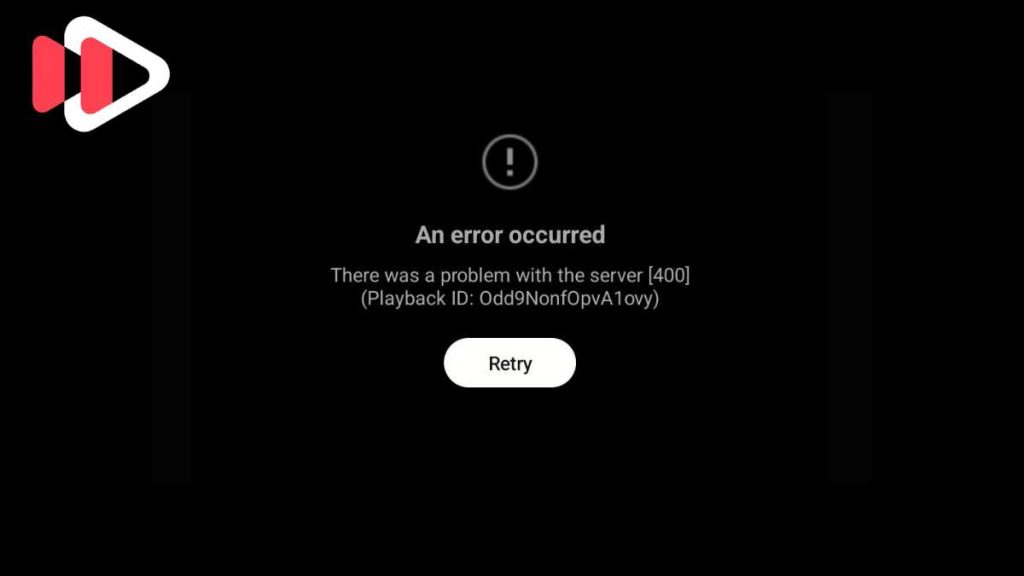
ReVanced Error 400 shows up when the patcher sends a request that the system cannot process. It usually happens in the ReVanced Manager or the ReVanced CLI. The patcher might be working with the wrong APK, the wrong version, or a broken patch bundle. Sometimes the error appears because the app’s signature does not match what ReVanced expects.
You will mostly see this error when patching YouTube, YouTube Music, or other apps that need the correct base APK. It can also show up when downloading patches, installing microG, or trying to sign the final APK.
Common Causes of ReVanced Error 400
This error can show up for different reasons depending on your device and the app you are trying to patch. These are the most common causes you should watch for.
• Patch version not matching the app you selected
• Unsupported or wrong APK variant, like split APKs or the wrong architecture
• ReVanced Manager or the patch bundle being out of date
• Missing or outdated microG for YouTube builds
• Signature mismatch during APK signing
• Corrupted cache or blocked storage permissions
• VPN or proxy breaking patch downloads
How To Fix ReVanced Error 400?
Fixes may change based on your phone, Android version, and the app you want to patch. However, most users solve the error with the steps below.
Fix 1: Update ReVanced Manager
ReVanced Manager uses patch bundles. When Manager is old, patches fail and Error 400 appears because the patch format changes. Updating the Manager gives you the newest patch list and better support for apps.
Here are the steps that help you update it.
- Open ReVanced Manager.
- Tap Settings.
- Select Check for updates.
- Download and install the new version.
- Restart the app.
Fix 2: Use a Supported APK Version
ReVanced works with specific versions of each app. If you try to patch the wrong one, you will get Error 400. You need a supported base APK from APKMirror or APKPure.
Follow the steps below to find a supported APK.
- Check the ReVanced compatibility list.
- Open APKMirror.
- Search for the exact version listed.
- Download only the base APK, not split APKs.
- Try patching again.
Fix 3: Avoid Split APKs
Split APKs cause patch failures because they include multiple packages. ReVanced needs a single standalone APK to apply patches.
Here’s how you can get the correct APK in just a few seconds.
- Go to APKMirror.
- Scroll until you see the Variant column.
- Pick the one labeled APK, not “Bundle” or “Split”.
- Download it.
- Open ReVanced Manager and patch it.
Fix 4: Clear ReVanced Manager Cache
Corrupt data can block patch requests and cause Error 400. Clearing the app cache resets the patcher.
The following steps will show you how to clear the cache properly.
- Open Android Settings.
- Tap Apps.
- Find ReVanced Manager.
- Tap Storage.
- Tap Clear cache.
Fix 5: Install or Update microG
YouTube mods need microG so your Google account can log in. If microG is missing or outdated, the patch may fail.
Try these simple steps to install the correct microG.
- Download Vanced microG or ReVanced microG from a trusted source.
- Uninstall old microG if it is installed.
- Install the latest microG version.
- Open ReVanced Manager and patch again.
Fix 6: Turn Off VPN or Proxy
Some patch files get pulled from the internet. When VPN or proxy is active, the request may fail. This leads to a bad request error like 400.
Turn off your VPN before patching and try again.
Fix 7: Disable Google Play Protect
Play Protect sometimes blocks modified apps during patching or installation. When this happens, you may see Error 400 or a failed signature.
Below are the steps to turn off Play Protect scanning.
- Open Google Play Store.
- Tap your profile icon.
- Go to Play Protect.
- Tap Settings.
- Turn off Scan apps.
Fix 8: Allow Storage Permissions
ReVanced needs storage access to extract and patch APK files. If permission is denied, the app cannot complete the patch request.
You can perform the following steps to enable permissions.
- Open Settings.
- Tap Apps.
- Select ReVanced Manager.
- Tap Permissions.
- Allow Storage.
Fix 9: Use ReVanced CLI Instead of Manager
If the Manager fails often, the CLI version is more stable. It lets you patch manually and avoids UI bugs.
To use CLI, you will need:
- Java installed
- Patch bundle
- Base APK
- microG if required
Run the patcher using the command line. It takes more steps but avoids UI issues.
Fix 10: Reinstall the Base App
If the app installed on your phone is the wrong variant, ReVanced may reject it during patching or signing.
Perform the following steps to reinstall the base app.
- Uninstall the app you want to patch.
- Download the correct supported base APK.
- Install it on your phone.
- Open ReVanced Manager and patch again.
Prevention Tips To Avoid Error 400 In The Future
You can stop most ReVanced errors by keeping things clean and updated. Here are some easy habits to follow.
- Update ReVanced Manager often
- Download APKs only from trusted sites
- Avoid beta versions of apps
- Keep microG updated
- Do not mix split APKs with base APKs
- Refresh patch lists before patching
- Restart your phone before patching larger apps
Conclusion
ReVanced Error 400 usually comes from version problems, wrong APKs, missing microG, bad signatures, or blocked permissions. Most of the time, updating Manager, using a supported APK, and clearing cache will fix the problem. Try the fixes one by one until the patch works.
If the error keeps showing up, check the ReVanced GitHub or community groups for updates, since patches change often.
If this guide helped you, feel free to comment and share it so others can fix the same issue.
Published on December 2, 2025 under .
