You install Soldier of Fortune II: Double Helix, the classic shooter from Raven Software published by Activision. The setup almost finishes. Then the installer suddenly stops and shows an I/O error near the end of installation.
This problem usually appears when the installer cannot read data from the installation disk or cannot write files to the system drive. In this guide you will learn what the error means, why it happens, and how to fix the installation so the SOF2 setup can finish successfully.
What Does “SOF2 Installation I/O Error” Mean?
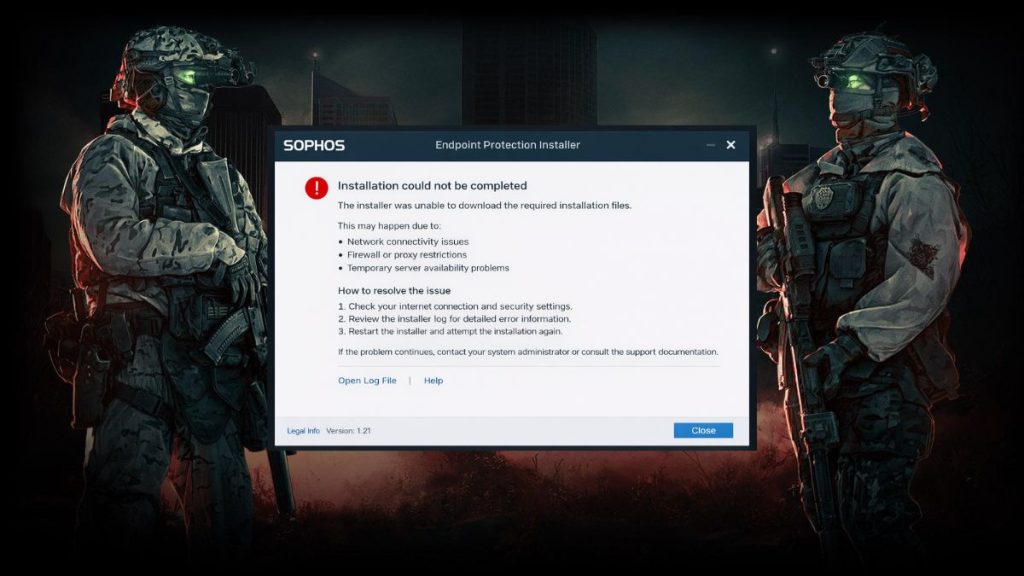
During installation the SOF2 setup program reads game data from the installation source such as a CD, DVD, ISO image, or game archive. The installer copies these files into the game directory on your hard disk drive or SSD. Each file must be read correctly and then written to the system storage device. If the installer cannot read part of the data or cannot write the file to the disk, the setup process stops and displays an Input/Output error.
This type of error usually indicates a problem with the installation media, storage device, or file access permissions.
Most players notice the error near the end of the installation progress bar when the setup program begins copying large game files or verifying installation data. The installer window freezes, then shows the I/O message and cancels the setup process.
Common Causes of the SOF2 Installation I/O Error
The installation error usually appears when the system cannot properly read game files or access the storage device.
Common causes include:
- damaged SOF2 installation CD or DVD
- corrupted ISO file or compressed installer archive
- disk read errors from the optical drive
- bad sectors on the system hard drive
- insufficient disk space for installation files
- compatibility problems running an old installer on modern Windows
- antivirus software blocking the installer
How to Fix SOF2 Installation Error I/O Error?
The fixes below help resolve disk read problems, compatibility issues, and corrupted installation files. Try them one by one until the installer completes successfully.
Fix 1 – Copy Installation Files to the Hard Drive
Sometimes the installer fails because the system reads files directly from the optical disk. Copying the files to a local folder can prevent read interruptions.
Here are the following steps which help you install the game from the hard drive.
- Insert the SOF2 installation disk.
- Open File Explorer.
- Copy all files from the disk to a new folder on the hard drive.
- Open the folder containing the copied files.
- Run the setup.exe installer from that folder.
Running the installer locally reduces disk read errors.
Fix 2 – Run the Installer in Compatibility Mode
Soldier of Fortune II Double Helix was designed for older versions of Windows. Running the installer with compatibility settings may solve the installation issue.
Follow the steps below to enable compatibility mode.
- Right-click the SOF2 setup file.
- Select Properties.
- Open the Compatibility tab.
- Choose Windows XP compatibility mode.
- Apply the changes and run the installer again.
Compatibility mode helps older game installers run on modern systems.
Fix 3 – Run the Installer as Administrator
Some installers need elevated permissions to write files to the Program Files directory.
Follow these easy instructions to run the installer with administrator privileges.
- Locate the SOF2 installer file.
- Right-click the setup file.
- Select Run as administrator.
- Confirm the permission request.
- Start the installation again.
Administrator access allows the installer to write files to system directories.
Fix 4 – Check the Hard Drive for Disk Errors
Disk errors or bad sectors on the storage drive can interrupt installation.
You can perform the following steps to scan the disk.
- Press Windows key + X.
- Open Command Prompt (Admin).
- Type the command below:
chkdsk /f /r - Press Enter.
- Allow the scan to complete.
The disk scan checks the file system and attempts to repair damaged sectors.
Fix 5 – Clean the Installation Disk
If you are installing the game from a physical CD or DVD, scratches or dust on the disk surface may cause read errors.
Try these simple steps.
- Remove the disk from the optical drive.
- Wipe the surface with a soft microfiber cloth.
- Clean from the center outward.
- Insert the disk again and restart the installation.
Cleaning the disk can restore readability.
Fix 6 – Download a Fresh Installer
If the game files were downloaded from the internet, the archive may be incomplete or corrupted.
Follow these steps to obtain a fresh installer.
- Delete the existing installer files.
- Download the installation package again from a trusted source.
- Extract the files to a new folder.
- Run the setup program again.
Fresh installation files prevent corrupted data from interrupting setup.
Fix 7 – Disable Antivirus Temporarily
Some antivirus tools block older game installers because they access system directories.
Try these steps to disable antivirus protection temporarily.
- Open your antivirus program.
- Disable real-time protection temporarily.
- Run the SOF2 installer again.
- Re-enable antivirus after installation finishes.
Disabling antivirus temporarily can prevent false security blocks.
Fix 8 – Install the Game Using an ISO Image
If the installation disk continues to produce read errors, creating or using an ISO image may help.
Follow these steps to install from an ISO file.
- Create or download an ISO image of the SOF2 disk.
- Mount the ISO using Windows or a virtual drive tool.
- Open the mounted drive.
- Run the installer from the virtual disk.
ISO images avoid problems caused by damaged optical media.
Prevention Tips to Avoid SOF2 Installation Errors
Preventing installation problems makes it easier to install classic games on modern systems.
Helpful tips include:
- verify installation files before starting setup
- keep the system drive healthy and free of disk errors
- store game installation disks carefully
- run older games using compatibility mode
- keep sufficient disk space available
- avoid interrupting the installation process
- maintain updated storage drivers
These steps help reduce disk read problems during installation.
Conclusion
The SOF2 installation error at end I/O error usually occurs when the installer cannot read data from the installation source or cannot write files to the system storage device. Problems such as damaged installation media, corrupted files, disk errors, or compatibility issues may interrupt the setup process.
Most users fix the problem by copying installation files to the hard drive, running the installer in compatibility mode, repairing disk errors, or downloading fresh installation files. If the installer continues to fail, installing the game from an ISO image often resolves the problem.
If this guide helped you install Soldier of Fortune II Double Helix, consider sharing it with other players. You can also leave a comment explaining which solution worked on your system.
Published on March 11, 2026 under .
