A computer with a solid state drive (SSD) should feel fast. Programs open quickly and the system boots in seconds. But sometimes the opposite happens. The system becomes slow, file transfers take longer, and disk activity stays high.
This guide explains why solid state drive performance issues happen and what you can do to restore normal speed.
What Are Solid State Drive Performance Issues?
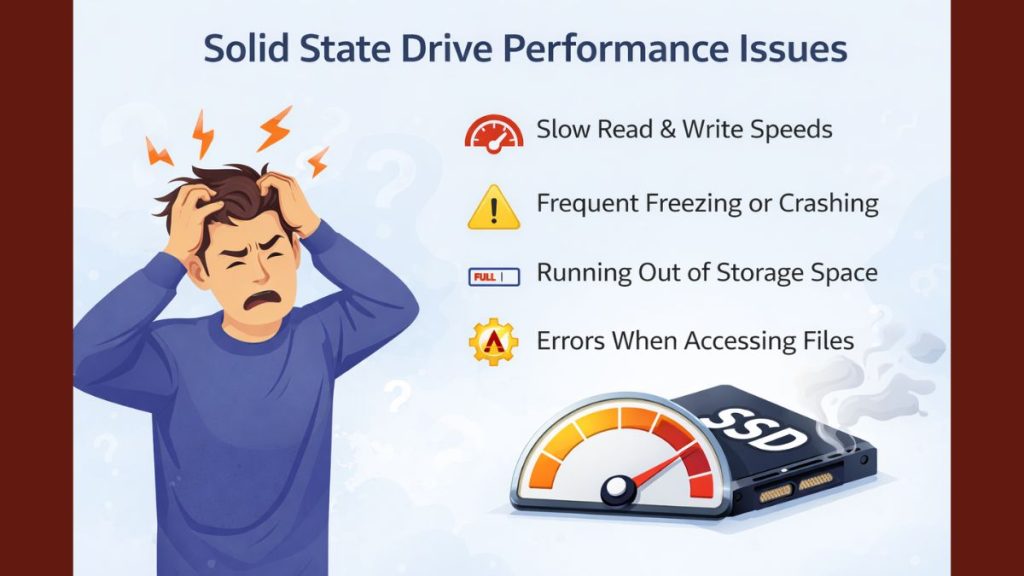
A solid state drive stores data on NAND flash memory instead of spinning disks like a traditional hard drive. The SSD controller manages read and write operations while the operating system communicates with the storage device through interfaces such as SATA or NVMe PCIe. Under normal conditions this technology allows fast data access, quick application loading, and rapid system boot times. When the drive or system configuration changes, performance may drop and the storage device no longer delivers its expected speed.
Users often notice this problem when file transfers slow down or applications take longer to open. Disk usage may appear high in tools like Windows Task Manager, even when the computer performs simple tasks.
Common Causes of Solid State Drive Performance Problems
SSD speed problems often come from system configuration rather than hardware failure. Storage settings, firmware versions, and operating system behavior can all influence performance.
Below are the most common causes you should know.
- SSD storage nearly full
- Disabled TRIM command in the operating system
- Outdated SSD firmware or storage controller firmware
- Incorrect BIOS storage configuration such as IDE mode instead of AHCI
- Background processes using disk resources
- Malware or system file corruption
- Overheating SSD controller or limited airflow
- Outdated storage drivers in Windows or Linux
For example, when an SSD approaches full capacity, the controller has fewer free blocks to manage data. That situation often slows down write performance.
How to Fix Solid State Drive Performance Issues?
Most SSD performance problems can be solved through system adjustments and simple maintenance tasks. Many fixes involve checking system settings, updating drivers, and ensuring the operating system interacts properly with the storage device.
To resolve this issue efficiently, try the following fixes.
Fix 1 – Free Up Storage Space
When an SSD is almost full, the storage controller struggles to manage data blocks efficiently. Freeing space can improve read and write speeds.
Follow the steps below to easily free storage space.
- Open File Explorer on your computer
- Locate large files such as videos or installation packages
- Delete unnecessary files or move them to external storage
- Empty the recycle bin
- Check the remaining free space on the drive
Keeping at least 20 percent of the SSD free can help maintain good performance.
Fix 2 – Enable TRIM
The TRIM command allows the operating system to inform the SSD which data blocks are no longer in use. This helps the storage controller maintain efficient performance.
Here are the following steps which help you verify TRIM status.
- Open the command prompt as administrator
- Type the command to check TRIM status
- Review whether TRIM is enabled or disabled
- Enable TRIM if it is currently disabled
- Restart the system after enabling the setting
TRIM helps the drive manage free space more efficiently.
Fix 3 – Update SSD Firmware
SSD manufacturers release firmware updates that improve stability and performance. Updating firmware can fix bugs affecting read and write speeds.
Try these simple steps to quickly update SSD firmware.
- Visit the SSD manufacturer website
- Download the official firmware update tool
- Run the utility on your computer
- Follow the update instructions
- Restart the system after the update finishes
Firmware updates often improve compatibility with operating systems and storage controllers.
Fix 4 – Update Storage Drivers
Storage drivers allow the operating system to communicate with the SSD hardware. Outdated drivers can limit performance.
Follow the steps below to easily update storage drivers.
- Open Device Manager in Windows
- Locate storage controllers
- Right-click the SSD controller driver
- Select update driver
- Install the newest available version
Updated drivers ensure efficient communication between the system and the drive.
Fix 5 – Check BIOS Settings
Incorrect BIOS settings may prevent the SSD from using its full capabilities. Many systems require AHCI mode for optimal performance.
You can perform the following steps to check BIOS settings.
- Restart the computer
- Enter the BIOS or UEFI menu
- Locate storage configuration options
- Confirm the controller uses AHCI mode
- Save the settings and restart the system
Proper BIOS configuration allows the SSD to operate efficiently.
Fix 6 – Disable Unnecessary Background Programs
Some applications constantly read and write data in the background. These processes may consume disk bandwidth.
The following steps will show you how to manage background programs properly.
- Open Task Manager
- Check disk usage for running programs
- Identify applications using excessive disk resources
- Close unnecessary programs
- Disable startup programs that are not required
Reducing background activity often improves SSD responsiveness.
Fix 7 – Scan for Malware
Malware can consume system resources and cause abnormal disk activity. Running a security scan helps identify harmful software.
Follow these easy instructions to scan the system.
- Open Windows Security or antivirus software
- Start a full system scan
- Allow the scan to complete
- Remove detected threats
- Restart the computer
Removing malicious software restores normal system performance.
Fix 8 – Monitor SSD Temperature
High temperatures can reduce SSD performance because the controller may slow down to protect the hardware.
These are the exact steps you need to follow to check SSD temperature successfully.
- Install a disk monitoring tool
- Open the monitoring software
- Locate the temperature readings for the SSD
- Check whether the temperature exceeds normal limits
- Improve airflow if the drive becomes too hot
Proper cooling helps maintain consistent SSD performance.
Prevention Tips to Maintain SSD Performance
SSD performance stays stable when the system receives regular maintenance. Small habits can prevent slowdowns before they appear.
Here are some helpful prevention tips you can follow.
- Maintain sufficient free storage space on the drive
- Keep firmware and storage drivers updated
- Ensure TRIM remains enabled
- Monitor disk health using diagnostic tools
- Avoid running unnecessary background programs
- Maintain proper cooling inside the computer case
- Install operating system updates regularly
Regular system care keeps the storage environment stable.
Conclusion
Solid state drive performance issues often occur because of system configuration problems, storage limits, outdated firmware, or excessive background activity. When the operating system interacts correctly with the SSD controller and the drive maintains enough free space, performance usually returns to normal.
If these solutions do not improve performance, the SSD may require deeper diagnostics or replacement. You can also share your experience in the comments and let others know which fix helped restore your system speed.
Published on March 16, 2026 under .
