Apple Music has evolved into a powerful streaming ecosystem, but many users still rely on local files—rare tracks, live recordings, mixtapes, or personal audio collections that are not available in the streaming catalog. While uploading local music to Apple Music is relatively straightforward, adding synced, time-coded lyrics requires a more deliberate approach. Properly embedded synced lyrics allow listeners to follow along in real time, just as they would with officially licensed tracks. If done correctly, your personal tracks can look and feel fully integrated inside the Apple Music app.
TLDR: You can add synced lyrics to local files in Apple Music by embedding time-coded lyrics (typically in LRC format) directly into supported audio file metadata. This requires preparing accurate timestamps, using a compatible tagging tool, and ensuring the files are properly synced via iCloud Music Library. Native support for editing synced lyrics is limited, so third-party tools are often necessary. Once added correctly, synced lyrics will display seamlessly across Apple devices.
Understanding How Apple Music Handles Lyrics
Before adding synced lyrics, it is essential to understand how Apple Music processes them:
- Static lyrics are plain text and can be added directly inside the Apple Music desktop app.
- Synced lyrics include timestamps that match the playback position.
- Apple officially supports synced lyrics through licensed distribution, but locally embedded time-coded lyrics can still function under specific conditions.
- Lyrics must be embedded in the file’s metadata—not just stored as a separate file.
In other words, simply pasting text into the “Lyrics” section in Apple Music will not create real-time scrolling. You must embed time-coded lyrics within the file itself.
Step 1: Prepare Your Local Audio File Properly
Apple Music works best with the following file formats:
- MP3
- ALAC (Apple Lossless)
- AAC (M4A)
If your file is in an unsupported format (such as WAV), convert it to AAC or ALAC using Apple Music or a trusted audio converter before proceeding.
After conversion:
- Open the Apple Music desktop app (Mac or Windows).
- Add the file to your library.
- Right-click the track and select Get Info.
- Verify that title, artist, and album fields are accurate.
Accurate metadata helps ensure proper syncing across devices once lyrics are embedded.
Step 2: Create or Obtain Synced Lyrics (LRC Format)
Synced lyrics use an LRC file format, which contains timestamps marking when each line should appear. A basic LRC format looks like this:
[00:12.00] First line of lyrics
[00:17.50] Second line of lyrics
[00:21.00] Third line of lyrics
You can obtain synced lyrics in three ways:
- Create them manually using an LRC editor.
- Download them from trusted online databases.
- Generate them using AI-powered lyric synchronization tools.
Best practice: Always verify timing accuracy manually before embedding, as even small timestamp errors can ruin the listening experience.
Step 3: Choose a Metadata Editor That Supports Synced Lyrics
Apple Music does not provide native tools for importing LRC files directly. You must use a third-party metadata editor to embed timed lyrics into the audio file.
Popular Tools for Embedding Synced Lyrics
| Tool | Platform | LRC Support | Ease of Use | Cost |
|---|---|---|---|---|
| Mp3tag | Windows, Mac | Yes | Moderate | Free |
| Kid3 | Windows, Mac, Linux | Yes | Moderate | Free |
| MusicBrainz Picard | Windows, Mac, Linux | Partial | Advanced | Free |
Recommendation: For most users, Mp3tag offers the best balance of reliability and control for embedding time-coded lyrics.
Step 4: Embed the Synced Lyrics Into the Audio File
The embedding process typically follows these steps:
- Open your metadata editor.
- Load the audio file containing your track.
- Locate the Lyrics or USLT/SYLT tag field.
- Paste the LRC content into the synced lyrics field.
- Save changes to rewrite the file metadata.
Ensure that the tag format used supports synchronized lyrics (often labeled as SYLT for ID3 tags in MP3 files).

Once embedded, the lyrics are permanently attached to the file. They are no longer dependent on an external LRC document.
Step 5: Re-Import and Sync Through Apple Music
If the track was already in your Apple Music library before editing, remove it first. Then:
- Re-add the newly edited file to Apple Music.
- Confirm metadata appears correctly.
- Enable Sync Library in Settings.
- Wait for iCloud Music Library to upload and process the file.
This step ensures that the embedded synced lyrics are carried across all devices logged into your Apple ID.
Important: Syncing may take several minutes depending on file size and upload speed.
Step 6: Verify Synced Lyrics on iPhone or iPad
After syncing, test playback:
- Open Apple Music on your iPhone or iPad.
- Play the track.
- Tap the lyrics icon.
- Observe whether lines advance in real time.
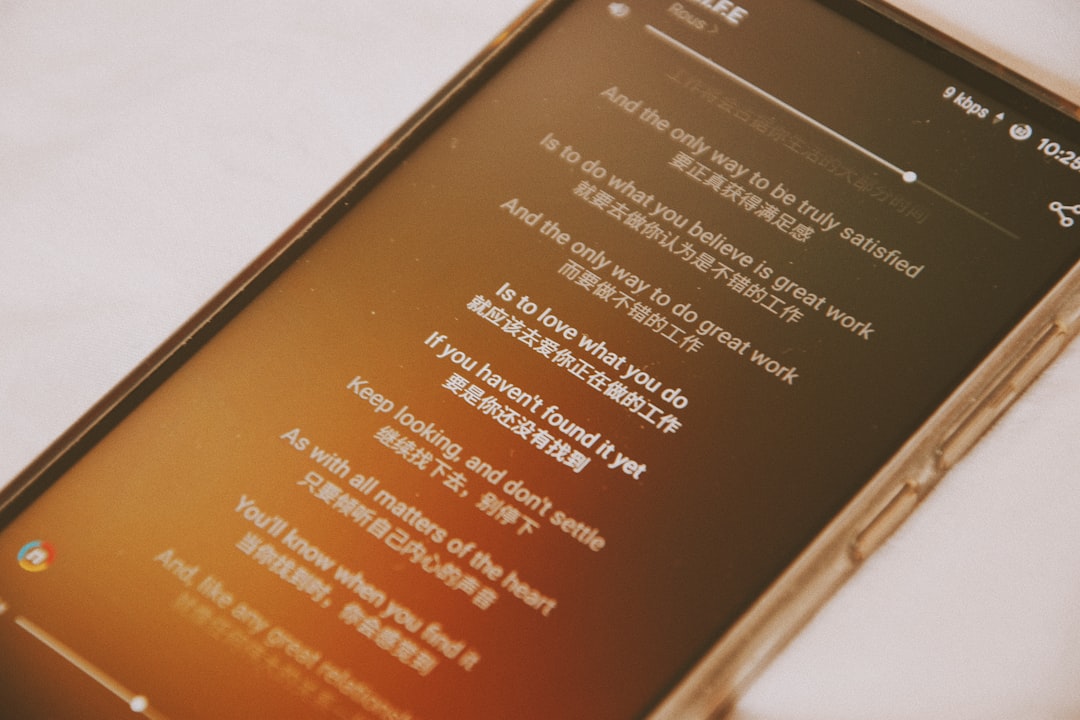
If the lyrics scroll in sync with playback, the embed was successful. If not, double-check:
- Timestamp formatting accuracy
- Correct tag type (SYLT vs plain text)
- File re-upload status
Common Issues and How to Fix Them
1. Lyrics Appear as Static Text Only
This usually indicates the wrong tag type was used. Re-embed using synchronized lyrics fields rather than unsynchronized text fields.
2. Lyrics Do Not Appear at All
Confirm that:
- The file format supports ID3 tagging.
- The track has successfully uploaded to iCloud.
- Sync Library is enabled on all devices.
3. Timing Is Off
Open the LRC file again in an editor and adjust timestamps down to hundredths of a second if necessary.
Limitations to Be Aware Of
While this method works, there are important constraints:
- Apple may not treat embedded synced lyrics exactly like officially licensed ones.
- Some devices may display synced lyrics inconsistently.
- Future iOS updates could affect compatibility.
For professional-level integration—such as public distribution—you must distribute through an Apple-approved distributor that supports official synced lyrics submission.
Alternative Approach: Using Third-Party Music Players
If Apple Music does not meet your expectations for lyric control, consider alternative players that fully support LRC files without limitations. However, this means sacrificing iCloud syncing and Apple ecosystem integration.
For users committed to Apple Music, embedding synced lyrics directly into local files remains the most reliable method currently available.
Best Practices for Long-Term Stability
- Keep backup copies of files before editing metadata.
- Store original LRC files separately in case future re-editing is needed.
- Use consistent timestamp formatting.
- Test across multiple Apple devices.
Taking these precautions ensures that your lyric enhancements remain functional even after system updates or library reorganizations.
Final Thoughts
Adding synced lyrics to local files in Apple Music requires technical precision, but the result is a polished, immersive listening experience. By embedding properly formatted LRC timestamps into your audio file metadata and syncing through iCloud Music Library, you can replicate much of the functionality found in officially licensed tracks.
Although Apple does not openly advertise support for user-generated synced lyrics, careful metadata management makes it possible. For collectors, audiophiles, and independent musicians, this process bridges the gap between personal libraries and modern streaming convenience. When executed correctly, your local tracks become visually and functionally indistinguishable from the rest of your Apple Music collection.
In short: precision, correct tools, and proper metadata handling are the keys to seamless synced lyrics integration.
Published on March 16, 2026 under .
