Monitoring application logs is an essential part of troubleshooting problems and ensuring that your Windows system is running smoothly. Whether you’re a system administrator, IT professional, or a curious user, checking logs can help identify the root cause of system or application issues in Windows 11 or 10. Fortunately, Microsoft has built robust logging tools into the operating system.
TL;DR: Checking application logs in Windows 10 or 11 can be done using three primary methods: Event Viewer, Reliability Monitor, and PowerShell or Command Prompt. The easiest way for most users is through the Event Viewer, while advanced users might prefer scripting with PowerShell. Each method gives you detailed access to system activities, application crashes, and more, helping you tackle problems efficiently.
1. Using Event Viewer
Event Viewer is a built-in utility in Windows that provides a detailed view of application and system logs. It’s a go-to tool for most IT professionals and offers comprehensive filtering and search features.
Steps to Open and Use Event Viewer:
- Right-click the Start button and choose Event Viewer. Alternatively, press Windows + S, type Event Viewer, and press Enter.
- In the left sidebar, expand Windows Logs and click on Application.
- Browse through the middle pane to view application-related logs. Each event will have a level such as Information, Warning, Error, or Critical.
- To find specific events, use the Filter Current Log option in the right-hand pane. You can narrow events by date, event level, event ID, and more.
- Double-click any entry to view its detailed properties, including process paths and error codes.
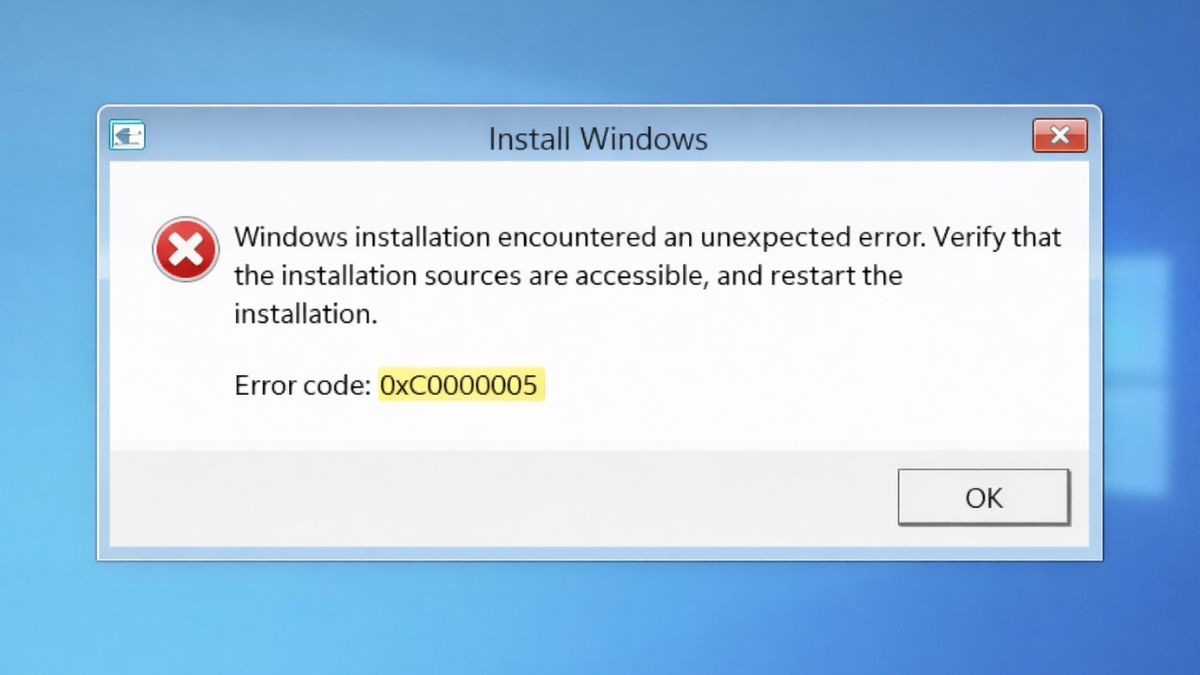
This method is particularly useful for tracking down application crashes or failures. Most applications, especially those integrated with Windows, log important operational information here.
Tips:
- Use the Save All Events As option to export logs for further analysis or sharing with support teams.
- Set up Custom Views for frequently monitored applications to improve efficiency.
2. Using Reliability Monitor
Reliability Monitor offers a user-friendly visual overview of your system’s reliability over time. It tracks key events like software installations, crashes, and hardware failures in a timeline format that’s easier to interpret than raw log files.
Steps to Access Reliability Monitor:
- Open the Start Menu and search for Reliability Monitor or type View reliability history, then press Enter.
- The Reliability Monitor window will show a graph of system stability scores over the past days or weeks.
- Click on any date with an error or warning symbol to view detailed information about that day’s incidents.
- You can check logs for software failures, Windows updates, unexpected reboots, and more.

This tool is ideal for users who want an at-a-glance summary of system health without diving deep into Event Viewer logs.
Advantages:
- Easy-to-read interface that summarizes complex log data.
- Quick identification of problem trends (e.g., recurring crashes).
- You can click on events like Application Failures to get more technical details, which link back to the Event Viewer.
3. Using PowerShell or Command Prompt
For advanced users and system administrators, using the Command Line or PowerShell provides a highly customizable way to extract and filter logs—useful for automation or when working on remote systems.
Using PowerShell:
- Right-click the Start button and choose Windows Terminal (Admin) or open PowerShell as administrator.
- To retrieve Application logs, run the command:
Get-EventLog -LogName Application -Newest 100 - You can filter logs by entry type:
Get-EventLog -LogName Application -EntryType Error -Newest 50 - Export logs to a file with:
Get-EventLog -LogName Application -Newest 100 | Export-Csv -Path "C:\Logs\ApplicationLog.csv"
Using Command Prompt (cmd):
- Open Command Prompt as administrator.
- To view recent application logs:
wevtutil qe Application /f:text /c:10 - This command shows the ten most recent logs from the Application log. You can change the
/c:value to adjust the number of events shown.
This method is highly efficient for parsing logs remotely or when dealing with scripts and batch tasks. It also empowers advanced filtering that’s difficult to do manually through GUI tools.
Why Use This Method?
- Automation: Great for scheduled log reviews or alert systems.
- Remote Analysis: Combine with remote access tools to check logs on other machines.
- Customization: Use scripts to filter by event ID, message content, time range, and more.
Which Method Should You Use?
The ideal method depends on your technical expertise and what you’re looking for:
- Beginners or occasional users: Use Reliability Monitor for a simple overview of system health and application behavior.
- Intermediate users: Use Event Viewer for access to detailed logs and an interface that supports filtering and exporting.
- Advanced users: Use PowerShell or Command Prompt for full control and automation possibilities.
Tips for Understanding Log Entries
- Look at the Event ID and Source fields. These help identify the application and nature of the event.
- Level: Indicates severity. Watch for Error or Critical entries during troubleshooting.
- Search online using the Event ID and Source for more insight or potential fixes.
Conclusion
Windows 11 and 10 offer multiple ways to access and interpret application logs, empowering users and administrators to detect and diagnose software issues effectively. Whether you choose the GUI-based Event Viewer, the user-friendly Reliability Monitor, or the powerful scripting tools in PowerShell, you can find the information needed to maintain a stable and secure system. In IT, knowledge is power—and careful log analysis is one of your most valuable tools.
Published on January 3, 2026 under .
